Monday, 27 February 2023

Call ChatGPT/GPT-3 from Power Apps and Power Automate via Azure OpenAI

Anyone in technology will know the buzz caused by ChatGPT since its launch, and beyond fooling schoolteachers with human-like essays and passing law exams we’ve seen many interesting real-world use cases already. Of course, the point isn’t that it’s just an interesting plaything - generative AI using large language models are powerful technology to integrate into apps, tools, and automated processes. The potential is almost limitless and entirely new categories of digital experience are opened up. As we all know, Microsoft were quick to identify this and their $11 billion investment in GPT creator OpenAI means cutting-edge AI is becoming integrated into their products and services.

So we know that Teams, SharePoint, Viva, Dynamics etc. will evolve quite quickly and with features like Power Apps Ideas and Power Automate AI Copilot, Microsoft are starting to include GPT-3 and Codex capabilities into the maker experience within Power Platform. However, alongside that we want to build GPT into *our* apps and solutions! In this post we’ll explore how to integrate GPT-3 into what you build with the Power Platform – this is significant because being able to call into GPT capabilities from Power Apps, Power Automate, Power Virtual Agent etc. can be hugely powerful. I won’t go into use cases too much here, but perhaps you want to generate content for new products in development or automate contact centre responses. Maybe you want to use it as a classic chatbot able to answer questions or be a digital assistant of some kind. Or maybe you want to analyse, summarise, translate, or classify some content. In this post I’m going to keep us focused on how to implement rather than usage, but the limit might just your imagination.

The (not particularly) bad news – some implementation work is required, there’s no magic switch in the Power Platform
The good news – it’s as simple as deploying some services in Azure and creating a Power Platform custom connector (which you, or someone in your organisation, may have done already)

What you'll need
Here are the ingredients for calling GPT from the Power Platform:
  • The ability to create an Azure OpenAI instance – note that this requires an application and is currently only available for managed customers and partners. Microsoft assess your use case in line with their responsible AI commitment
  • The ability to create and use a custom connector in the Power Platform
  • A paid Power Platform license which allows you to use a custom connector (e.g. Power Apps/Power Automate per user or per app plan)

Overall here’s what the process looks like:
If you have experience of connectors in the Power Platform things are reasonably straightforward, though there are some snags in the process. This article presents a step-by-step process as well as some things that will hopefully accelerate you in getting started.

Azure OpenAI – the service that makes it happen


In my approach I’m using Azure OpenAI rather than the API hosted by the OpenAI organisation, because this is the way I expect the vast vast majority of businesses to tap into the capabilities. For calling GPT or other OpenAI models to be workable in the real world, it can’t just be another service on the internet. Azure OpenAI is essentially Microsoft-hosted GPT – providing all the security, compliance, trust, scalability, reliability, and responsible AI governance that a mature organisation would look for. Unsurprisingly, the OpenAI service folds under Azure Cognitive Services within Azure, and this means that working with the service and integrating it into solutions is familiar. Microsoft are the exclusive cloud provider behind OpenAI’s models, meaning you won’t find them in AWS, GCP or another cloud provider.

Azure OpenAI is a gated service
To work with Azure OpenAI you need to apply for access, which involves completing a form to describe how you plan to use the service and providing some other details. You’ll also provide the ID of the Azure subscription you plan to use the service from – if your application is approved, this is the subscription where the service will be enabled for you. Note also that the service is only available in three Microsoft regions for now. Details about the application process can be found in the How do I get access to Azure OpenAI section in the Microsoft docs.

Link – form to apply for OpenAI: https://aka.ms/oai/access

Once you’ve received notification that your application for Azure OpenAI has been approved, you’re ready to start building.

Step 1 – create your Azure OpenAI instance


Firstly, in the Azure portal navigate into the Azure subscription where your usage of OpenAI has been approved. Start the process by creating a new resource and searching for “Azure OpenAI”:

Click the ‘Create’ link. We’ll now provide the details to create the resource in your chosen region and resource group – in my case I already have a resource group ready to go:
There’s only one pricing tier and currently you’ll be selecting from one of three regions where the OpenAI service is available:
  • West Europe
  • East US
  • South Central US
Hit the ‘Review + create’ button and you should see validation has passed:
Now finish off by clicking the ‘Create’ button:
Creation will now start:
Once complete, your OpenAI resource will be available. The main elements you’ll use are highlighted below:

Exploring the Azure OpenAI Studio


For the next steps you’ll use the link highlighted above to navigate into the Azure OpenAI Studio – this is the area where OpenAI models can be deployed for use. Like many other Azure AI capabilities, configuration isn't done in a normal blade in the Azure portal - instead there's a more complete experience in a sub-portal. Here’s what the Studio looks like:

Azure OpenAI Studio has a GPT-3 playground, similar to the openai.com site where you may have played with ChatGPT or the main playground. In the Azure OpenAI Studio the playground can be used once you have a model deployed (which we’ll get to in a second), and it’s exactly like OpenAI’s own GPT-3 playground with some ready-to-play examples and tuning options. In the image below I’m summarising some longer text using the text-davinci-003 model:
The playground gives you the ability to test various prompts and the AI-generated results, also giving you info on how many tokens were used in the operations. Pricing is consumption-based and will depend on how many tokens you use overall.

To give a further sense of what’s available in the Azure OpenAI Studio, here’s the navigation:
To move forward with integrating GPT-3 into our apps, we need to deploy one of the AI models and make it available for use.

Step 2 – choose an OpenAI model and deploy it


Using the navigation above, go into the Models area. Here you’ll find all the OpenAI models available for selection, and for production use you’ll want to spend time in the OpenAI model documentation to establish the best model for your needs. Here’s a sample of the models you can choose from:
Each model has a different blend of functional performance from the model for the cost and speed of operations. The Finding the right model area in the OpenAI documentation has the information you need and here’s a quick extract to give you a sense:

Model (latest version) Description Training data
text-davinci-003 Most capable GPT-3 model. Can do any task the other models can do, often with higher quality, longer output and better instruction-following. Also supports inserting completions within text. Up to Jun 2021
text-curie-001 Very capable, but faster and lower cost than Davinci. Up to Oct 2019
text-babbage-001 Capable of straightforward tasks, very fast, and lower cost. Up to Oct 2019
text-ada-001 Capable of very simple tasks, usually the fastest model in the GPT-3 series, and lowest cost. Up to Oct 2019

Text-davinci-003 is the model most of us have been exposed to the most as we’ve been playing with GPT-3, and as noted above it’s the most powerful. It’s worth noting that if your use case relates to GPT’s code capabilities (e.g. debugging, finding errors, translating from natural language to code etc.) then you’ll need one of the Codex models such as code-davinci-002 or code-cushman-001. Again, more details in the documentation. Most likely you just want to get started experimenting, so we’ll deploy an instance of the text-davinci-003 model.

To move forward with this step, go into the Deployments area in the navigation:

From there, hit the ‘Create new deployment’ button:
In the dlalog which appears, select the text-davinci-003 model (or another you choose) and give it a name – I’m simply giving mine a prefix:
Hit the ‘Create’ button and model creates instantly:
The model is now ready for use – you can test this in the playground, ensuring your deployment is selected in the dropdown. The next step is to start work on making it available in the Power Platform.

Step 3.1 – create the custom connector in the Power Platform


Background:

Azure OpenAI provides a REST API, and in this step we’ll create the custom connector to the API endpoint of your Azure OpenAI service and a connection instance to use. From the REST APIs provided, it’s the Completions API which is the one we’ll use – this is the primary service to provide responses to a given prompt. A call to this endpoint looks like this:
POST https://{your-resource-name}.openai.azure.com/openai/deployments/{deployment-id}/completions?api-version={api-version}
In a JSON body, you’ll pass parameters for the prompt (i.e. your question/request) and various optional tokens to instruct GPT on how to operate, including max_tokens and temperature to use. All this is documented and the good news is you can stay simple and use defaults.

You can authenticate to the API using either AAD (which you should do for production use) or with an API key. In my example below I’m using the API key to keep things simple, and this approach is fine as you get started. A header named “api-key” is expected and you pass one of the keys from your Azure OpenAI endpoint in this parameter.

Process:

If you’ve ever created a Power Platform connector before you’ll know there are various approaches to this – the API docs link to Swagger definitions on Github, however these will not work for the Power Platform because they’re in OpenAPI 3.0 format and the Power Platform currently needs OpenAPI 2.0. To work around this I created my connector from scratch and used the Swagger editor to craft the method calls to match the API docs. To save you some of this hassle you can copy/paste my Swagger definition below, and that should simplify the process substantially.

Before we get started, you’re going to need the details of your Azure OpenAI endpoint, so collect those now and store them safely (remembering that your API key is a sensitive credential). To do this, go back into the main Azure portal (not the OpenAI Studio) and head into the ‘Keys and Endpoint’ area:


Once there, use the screen to collect one of your keys and the endpoint URI:


Once you have those details, we’re ready to create the connector in the Power Platform. To do this, go to https://make.powerautomate.com/ and ensure you’re in the Power Platform environment to use.

From there, go to the Custom connectors area:

Hit the ‘New custom connector’ button and select ‘from blank’:

Give your connector a name:

We now start defining the connector – you can define each individual step if you like but you should find it easier to import from my definition below. Before that step, you can add a custom logo if you like in the ‘General’ area – this will make the connector easier to identify in Power Automate. 

The next step is to download the Swagger definition and save it locally. If you choose to use my Swagger definition, you can get it from the embed below (NOTE: if you're reading on a phone this will not be shown!). Copy the definition and save it locally:


Make the following changes to the file and save:
  • Replace ‘[YOUR ENDPOINT PREFIX HERE] in line 6 with your prefix – the final line should be something like cob-openai-instance1.openai.azure.com
  • Replace ‘[YOUR DEPLOYMENT ID HERE]’ with your AI model deployment name from the Azure OpenAI Studio – in the steps above, my model name was cob-textdavinci-003 for example
In the connector definition screens, toggle the Swagger Editor toggle so it’s on:


The editor UI will now show on the left - paste your amended Swagger definition in here. The image below shows my host (prefixed ‘COB’) but you should see your equivalent:

Once this is done, simply hit the ‘Create connector’ button:
Your custom connector has now been created using the details from the Swagger definition.

Step 3.2 – create connection instance


Once the custom connector exists we create a connection from it – if you haven’t done this before, this is where credentials are specified. In the Power Automate portal, if you’re not there already go back into the Data > Custom connectors area and find the custom connector we created in the previous step – when you find it click the plus icon (+):
Paste in the API key previously retrieved for your Azure endpoint and hit ‘Create connection’:
The connection is now created and should appear in your list:
We’re now ready to test calling GPT from a Flow or Power App – in the next step we’ll use a Flow.

Step 4 – test calling GPT-3 from a Flow


Follow the normal process in Power Automate to create a Flow, deciding which flavour is most appropriate for your test. As a quick initial test you may want to simply create a manually-triggered Flow. Once in there, use the normal approach to add a new step:
In the add step, choose the ‘Custom’ area and find the connection created in the previous step:
If you used my YAML, the connector definition will give you a Flow action which exposes the things you might need to vary with some elements auto-populated – remember to make sure your model deployment ID is specified in the first parameter (it will be if you overwrote mine in the earlier step):
Let’s now add some details for the call – choose a prompt that you like (red box below) and specify the number of tokens and temperature you’d like the model to use (green box below):
If you now run the Flow, you should get a successful response with the generated text returned in the body:
If we expand this, here’s what our call to GPT-3 created in full for these parameters:

Power Platform Governance is an important component of any organization’s digital transformation effort that allows customers to stay in control of the data, applications, and processes. It is an integrated system of policies, standards, and procedures that ensure the correct use and management of technology. This governance framework provides organizations the assurance, confidence, and trust that their technology investments are secure, optimized, and compliant with the industry standards.

Power Platform Governance consists of three main components: Governance Policies, Governance Model, and Governance Reporting. Governance Policies are the foundation of the framework and define the standards, procedures, and rules that organizations must adhere to. The Governance Model is a set of tools, processes, and best practices that organizations use to implement and enforce the governance policies. Lastly, Governance Reporting is the process of monitoring, analyzing, and reporting on the adherence to the governance policies.

Overall, Power Platform Governance is an important component of any digital transformation effort, as it helps organizations to stay in control of their investments in technology, making sure that it is secure, optimized and compliant with the industry standards. It consists of three main components: governance policies, governance model, and governance reporting. This framework helps organizations to create a reliable and secure environment for their technology investments, ensuring that they are in compliance with the industry standards.

SUCCESS! You now have the full power of GPT-3 and other OpenAI models at your disposal in the Power Platform.

I recommend playing around with the max_tokens and temperature parameters to see different length responses and greater/lesser experimentation in the generation. Again, spend time in the OpenAI documentation to gain more understanding of the effect of these parameters.

GREAT! But how much will some experimentation cost?
The text-davinci-003 model used in this example costs $0.02 per 1000 tokens used, so you'll need to do a lot of playing to generate significant costs. Since the max_tokens parameter is exposed in the Swagger definition above, you can easily control how large or small the responses should be to allow you to control things as you're playing. Since this is just Azure consumption, you can also set up budgets and notifications in Azure Cost Analysis to help you monitor usage. I'll cover this in an upcoming article.

Summary


Being able to call into powerful generative AI from the Power Platform provides a huge range of possibilities - imagine integrating GPT-3 capabilities into your apps and processes. You can automate responses to queries, generate content, or even translate, summarise, classify or moderate something coming into a process. With the Codex model, scenarios around code generation and checking are also open. Most organisations invested in Microsoft tech will want to use the Azure-hosted version of the OpenAI models, and this is the Azure OpenAI service as part of Azure Cognitive Services. The service requires an application to be approved before you can access it, but it's as simple as completing a form in most cases. The process outlined above allows you to connect to the service through a Power Platform custom connector, and this can be shared across your organisation and/or controlled as you need.

The connection essentially gives you all the standard GPT-3 and Codex possibilities, meaning everything you may have experienced or read about online. Going beyond that, in many use cases you'll want to explore model fine-tuning or patterns like Retrieval Augmented Generation - for example, to bring in industry or organisation-specific data and decision-making from your own prompts. This guides the AI into understanding your particular domain much more than the default. That's beyond the scope of this article but is just one of the many possibilities for going further with generative AI in your apps. 

I also highly recommend putting some controls in place to ensure you are protected from costs spiralling out of control - this is the subject of my next article.

Monday, 20 February 2023

My talks on Viva Topics at the European Collaboration Summit 2023, Düsseldorf and Modern Workplace Conference 2023, Paris

Along with Microsoft Syntex, Viva Topics is a technology close to my heart these days. I championed it's deployment at my employer (Content+Cloud) because, like every organisation, we're generating a huge volume of new documents and content each month and without new approaches and AI, it's becoming more difficult to find things and get questions answered, not easier. Microsoft's statistic that 1.6 billion documents per day are added to Microsoft 365 is eye-opening, and without some investment in content governance and tools that help you move beyond navigation and search, it's hard to ensure employees can continually find what they need and get their work done efficiently. 

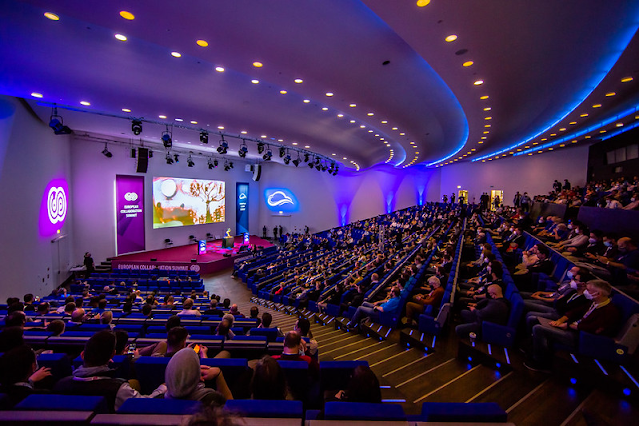
I'm happy to say that I'm sharing our experience of Viva Topics, along with learnings and recommendations in a couple of talks at upcoming conferences. The larger event is the European Collaboration Summit in held in Germany in May (easily one of Europe's best Microsoft conferences), and I'm also honoured to be speaking at the Modern Workplace Conference in Paris in March which looks great too. If you're looking for learning and personal development events in Europe this spring and/or are interested in Viva Topics, some details of the conferences and my talks below. 

European Collaboration Summit 2023

When: 22-24 May 2023

Where: Düsseldorf, Germany

What: A top-tier Microsoft conference covering everything Microsoft 365, including the Power Platform, Teams, SharePoint, Viva, security, development and more. Speakers include 30+ Microsoft folks like Dan Holme, Vesa Juvonen, Stephen Sciliano and Laurie Pottmeyer along with a stellar line up of MVPs and community contributors. The event is held over 3 days with full day tutorials on day 1, over 120 sessions overall and lots of networking.      

Link: https://www.collabsummit.eu

NOTE: For a limited time you can also get a 15% discount using the code "COLLABSPEAKER2023"

My talk: Real world Viva Topics - benefits, mistakes and learnings

Abstract: If your Microsoft 365 tenant could understand the most valuable topics in your organisation and safely use the combination of AI and humans to signpost to the golden information, would you use it? Viva Topics has been available for some time and organisations are waking up to what AI can bring - particularly in helping side-step challenges of a complex tenant landscape, thousands of Teams and sites, and imperfect search and navigation. This session will include demos of Viva Topics in our production environment so you can see the experience in action. With the benefit of two years of experience and membership in Microsoft's Content AI partner program, this session will unpack Viva Topics value - sharing details of our journey and lessons learnt from implementing the technology for clients. How does the AI establish what's valuable? What happens about our sensitive content? Who will curate topics? What happens in a multi-lingual environment? This session will answer these questions and more, providing you with best practice guidance to move forward with confidence.


Modern Workplace Conference 2023

When: 27-28 March 2023

Where: Paris, France

What: A great 2-day community event with lots of MVPs and community speakers focused on everything Modern Work related. Over 60 sessions with 1000+ participants expected. Sessions are held in English.

Link: https://modern-workplace.pro

My talk: Viva Topics 18 months later - what did we get?

Finding information and expertise is far too time-consuming in the vast majority of organisations. Poorly configured search, the sprawl of repositories and sites, unceasing content growth and difficulties recognising authoritative content all conspire against the information worker. No wonder McKinsey and IDC report that the average knowledge worker spends 20-30% of their time just looking for things. Viva Topics is Microsoft's answer to this challenge. After being part of the Project Cortex private preview, we've had 18 months of Viva Topics being live in our business and have implemented the technology for several clients. This session covers the benefits we've seen (both the expected and unexpected), and shares best practice guidance on how to plan, implement, and build on Viva Topics. We'll demo the technology in our production environment so you can see the experience in action. Implementing Viva Topics at scale can be a big investment and it's important to know what's coming in the future. We'll end with a discussion on Microsoft's future roadmap and capabilities, so you can plan ahead with confidence.

Summary

We're coming into conference season and there are some great events happening around Europe. I hope to be speaking at a couple of other events in addition to those listed here and it would be great to see you somewhere - now is the time to start planning your learning and pitching to your boss!

Tuesday, 17 January 2023

Syntex Pay As You Go - how it helps and how to use it

In previous articles I've covered many of the capabilities of Syntex and how it can be used, and from my perspective organisations are becoming very interested in Syntex to automate processes involving documents. In a notable development Syntex now has a Pay As You Go (PAYG) model for pricing - in preview until February/March 2023 with no costs charged. In the same approach used for Power Platform PAYG, Azure billing is used and charges appear in Azure Cost Management within the subscription linked to your Microsoft 365 tenant. In this article we'll consider cases where the PAYG may be more appropriate than the 'per seat' licensing model, how to configure it, and considerations for using it. A big factor here is precisely which Syntex features are available in the PAYG model - it's not all of them, and Microsoft are starting in some places and expanding over time.

Why use PAYG for Syntex?
In short, many processes you might automate with Syntex don't align well with a small, specific group of employees who will consistently use the capability (suited to the per seat licensing model). Some do of course - the finance team who are using Syntex to automate invoice processing or receipt analysis, or the research analysts who need automated tagging and powerful search across articles they create. However, sometimes we want all employees to participate in a process where Syntex is used despite the fact this only happens occasionally. Examples could include:
  • Processes and documents related to an event - a webinar, or month-end/year-end processes, company results time etc.
  • An organisational CV store where any employee can upload and maintain their CV
  • Using Syntex for governance i.e. the AI detecting sensitive data in documents in order to automatically apply a sensitivity label in Microsoft 365 - to drive encryption, conditional access, or other security measures
  • Using Syntex for compliance - driving automated retention labels to ensure content isn't retained for longer than permitted
These examples all relate to Syntex content understanding capabilities i.e. Syntex analysing and/or extracting contents of your documents to do something with that. 

On the content creation side, Syntex Content Assembly might be used to generate new documents in an automated (or semi-automated) way by many people but only occasionally. Perhaps it's a large team of engineers who occasionally create risk assessments or safety reports, or a finance or HR process which creates a document but can be triggered by a large number of people.

Other areas where it will often make sense to pay as you go relates to Syntex content management capabilities coming later in 2023, such as eSignatures. PAYG will be very relevant here - see my list lower down.

Which Syntex capabilities can be used with PAYG?


Let's break it down into what's here today (January 2023) and what's coming tomorrow.

TODAY:

  • NEW - Unstructured document processing
  • Structured document processing (via AI Builder)
  • Freeform document processing (via AI Builder)
In short, all document understanding capabilities can now be used via PAYG (subject to preview conditions until Febrary/March 2023 - more on that later). The fact this now includes arguably the most powerful type, unstructured document processing, is significant.

TOMORROW:

Note: This is my list, not Microsoft's. While Microsoft have not announced that Syntex PAYG will support all the big features coming this year, given the nature of the 'content transactions' in these areas I think it's a reasonable bet that Syntex PAYG will support all of these in time:    

  • Content Assembly
  • Image tagging
  • Translations 
  • Summarisations
  • Backup/restore
  • Archiving
  • Syntex eSignatures (forthcoming alternative to DocuSign and Adobe Sign) 

How much does Syntex cost under PAYG?

Each type of operation (e.g. a document being understood by Syntex, or a document being created by Syntex Content Assembly) will have it's own cost - and Microsoft have not yet announced pricing as of January 2023. Logically, I'd expect pricing models to look something like this:

Capability Charged by
Content assembly Per document generated
Syntex eSignatures Per signature
Syntex backup/restore Volume of data (and perhaps number of restores)
Syntex archiving Volume of data (and perhaps access frequency or volume of data accessed)
Syntex document summarisation/translation/image tagging etc. Per item processed

Regardless of the specifics, this will give 'pay per use' consumption pricing which should make Syntex appealing to many organisations. Simpler than 3rd party products which compete with some of these features, no wastage, and for orgs bought into Syntex no complex planning for exactly who should get a Syntex license and how to force processes around that.

A note on the PAYG preview (running until Febrary/March 2023):

For the preview period, unstructured document processing (the key new item in the 'today' category above) is 100% free - and no predicted costs show on the bill, because pricing hasn't been announced. What you do get to see is how many documents are being processed and in which sites in your tenant. The idea is for organisations already using Syntex with licensed users to have a method of measuring consumption and therefore having a means of calculating costs based on real usage when PAYG becomes available. However, I'm not sure how valuable this personally since relatively few businesses are in production with fully-enabled Syntex processes today - seeing consumption across a bunch of POC test cases isn't too helpful.

Configuring Syntex PAYG

You need the following:

  • An Azure subscription in the same tenant
  • A resource group in Azure to use for the Syntex billing resources
  • An Azure storage account - used to store Excel exports showing Syntex billing

Step 1 - associate Syntex billing in M365 to Azure

To set up we start in the Microsoft 365 admin portal. Head to the 'Setup' area followed by the Syntex configuration option within the 'Files and content' section:


Here you'll see a new item to set up billing: 

In here you need to select the Azure subscription, resource group and region to use for billing storage:

Once that's done the initial configuration starts to happen:

Step 2 - configure Syntex billing exports to Azure storage

So far we've just told Syntex that we do want to use PAYG - this makes it available in the tenant (i.e. to non-licensed users), but what's needed now is the ability to monitor costs. Since this is done in Azure, head into your subscription. The first thing we need is a storage container to hold the files, so let's create that first - you can have the Azure wizard create the storage container for you, but generally better to do quick one-off steps manually so you truly know where things are. I named my container "syntex" (needs to be lower case):

We now configure the export. This ensures the Excel billing files showing your Syntex consumption will be exported regularly from Microsoft 365 to Azure so you can monitor and analyse. To do this, go to the Cost Management blade and then into the 'Exports' area:


Now we select the options for the export. You'll generally want to see actual costs (the alternative is an ammortised view) and I chose the  'daily' option to get a new file each day - in production you may be happy with weekly or monthly:

The storage container is also chosen at this point (select the 'use existing' option if you created it already):


Once this is done the export is set up:


Syntex billing reports

Once the export has been processed files will start to appear in your selected Azure container, with a folder for each export configured:

Drilling into the containers will take you to the Excel files. Once downloaded, you'll see data for all your Azure operations so if it's a busy subscription there'll be a lot in there. To isolate the Syntex rows, add an Excel filter on a column such as:
  • meterCategory = Syntex

This will give you a view of your Syntex PAYG transactions:


Considerations:
  • Today you'll only see 'Document Understanding' items, but in the future you'll see transactions for Syntex eSignatures, Content Assembly, backup/restore actions etc. A number of fields reflect this, including 'ProductName'
  • The 'tags' field - this gives details of the  SharePoint sites and libraries where the Syntex AI model processed the document, helping you understand the actions your users are taking and in which
  • The 'quantity' field - this relates to the number of pages processed by Syntex AI, across all processed documents 
  • At the moment, some useful details such as the specific Syntex AI model used and precisely who is triggering consumption does NOT come through to the logs. This is a shame because being able to see 'invoice processing' and 'contracts model' etc. would simplify understanding how Syntex is being used a lot. Let's hope additional detail like this comes through in the future  
  • Preview note - since Syntex PAYG is free in the preview period the 'effectivePrice' is 0 - so as described above, the preview doesn't help you fully predict costs at the moment, but does convey usage - which you can use when pricing is announced

How do I predict and stay in control of Syntex PAYG costs?
As usual with Azure billing, the answer is by configuring budgets and alerts

Using the metadata for Syntex operations which comes through to Azure billing, we can create a budget within Azure Cost Management to alert an operations team that consumption is higher than expected - at which point some investigation and/or intervention action can occur. In common with Azure Cost Management in general, we can't set an absolute limit at which point consumption is blocked - and indeed, most organisations wouldn't this for production processes. The last thing you want at month end is to discover invoices are no longer being processed and for it to take a day to find out why. But Azure budgets and alerts give you the foundations to implement the control processes you need.
Let's look at this in the next section.

Configuring an Azure budget to stay in control of Syntex PAYG costs


To configure budgets and alerts for Syntex consumption, head into the Azure Cost Management and then into 'Budgets'. 

The key step is to add a filter for one of the Syntex fields - for example 'MeterCategory = Syntex':


As more Syntex capabilities arrive which support PAYG, you could choose to be more specific e.g. monitor spending on document understanding specifically:

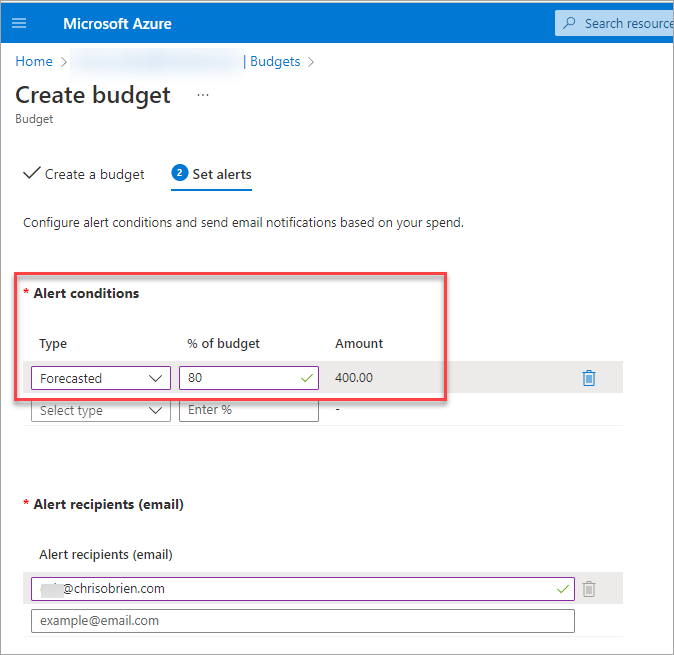
The next step is to configure the alert so that someone is notified at the right point (e.g. 80% of the forecast OR actual spend has been reached):
Once you have the budgets configured as you need, admins can track and forecast Syntex PAYG costs as we progress through a month or quarter, and you're in control of your spend. Job done.

Summary


Being able to pay only for what you use opens the door to Syntex adoption without an extensive business case and/or complex licensing decisions. As of January 2023 the capability is only in preview, and only for Syntex unstructured document understanding - the other two document processing flavours (unstructured and freeform) are already covered since they are charged through AI Builder credits in the Power Platform. However, this is the first truly native Syntex capability to get PAYG - and in the future we can expect Content Assembly, eSignatures, backup/restore, archiving and other Syntex capabilities to be charged in this way or at least have a PAYG option. Having this done through Azure Cost Management provides an existing model which admins in most organisations will already be very familiar with. 

Sunday, 27 November 2022

Microsoft Syntex - December 2022 update and compiled articles

Microsoft Syntex has been one of Microsoft's biggest announcements in 2022 - which can be somewhat confusing because it existed previously as SharePoint Syntex since 2020 - but Syntex is expanding massively from "AI that understands your documents so you can automate processes" to an entire suite of advanced capabilities related not just to your documents, but also your images and videos. Some of the bigger recent or forthcoming features include document eSignatures, annotations, image recognition, automated document summaries and translations, auto video transcription and much more - many of which were announced at Microsoft's Ignite conference in October 2022. I'm hearing Microsoft folks say that "Syntex could be as big or bigger than the Power Platform in time", which is an interesting thought given the impact that has had.

Over the last 2 years I've been writing a lot about Syntex on this blog and thought it would be good time to do two things:
  • Provide a 'Syntex on a page' round-up of the current and future capabilities    
  • Provide links to my Syntex articles from one place
  • Provide links to a couple of YouTube videos demonstrating Syntex in action from conference talks I've given
This article provides these.

Syntex on a page - December 2022


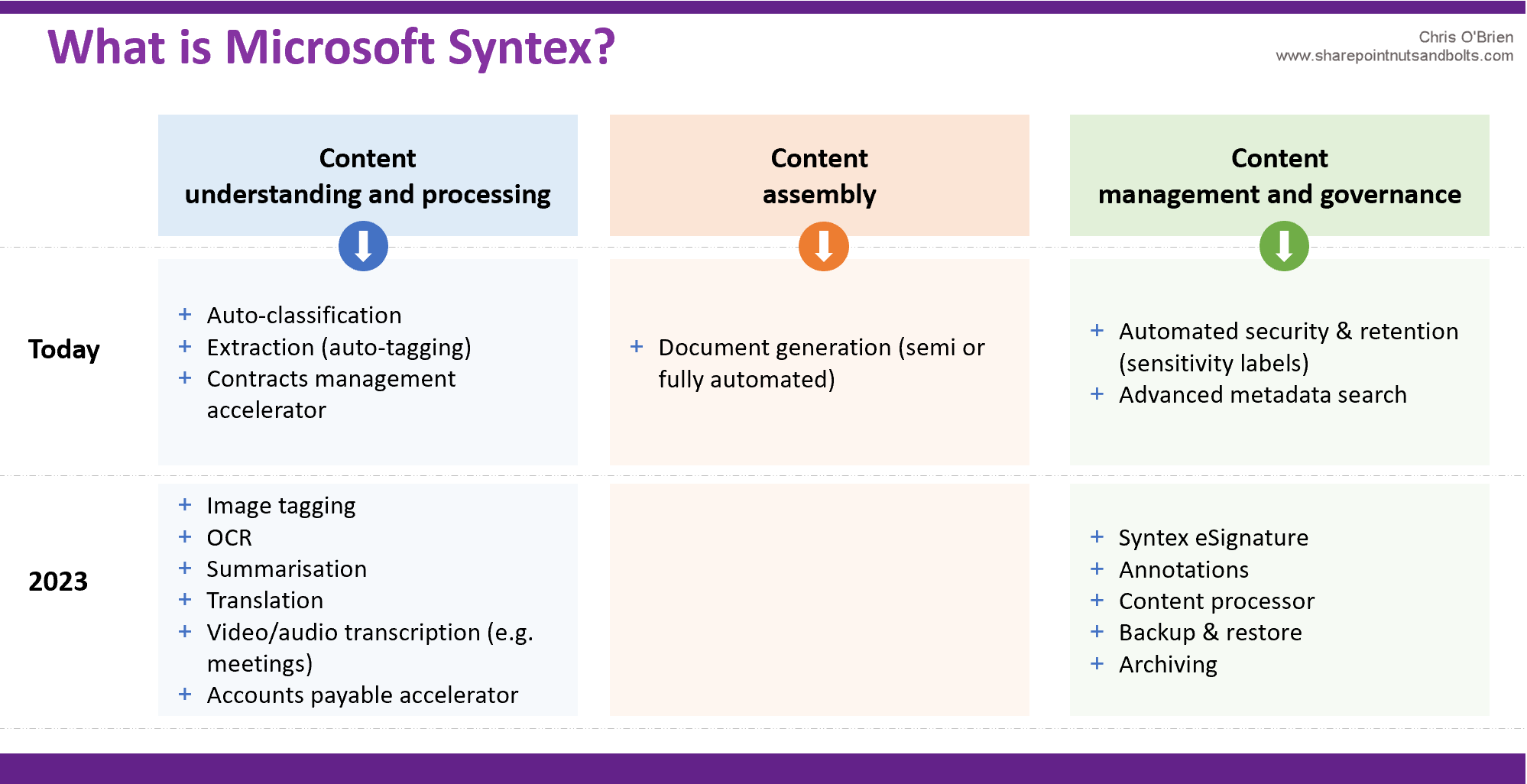
If you're confused about what's in Syntex and what's coming, I like to put things into these buckets:
  • Content understanding and processing - using AI to understand your documents and automate something 
    • Example - find all risk assessments missing a start date and contact the supplier organisation
    • Example - read an insurance contract and save the policy details to a database
  • Content assembly - automated creation of new documents
    • Example - generate a new contract for every new starter
  • Content management and governance - premium document management capabilities 
    • Example - send a completed contract for eSignature (like DocuSign or Adobe Sign but fully integrated into Microsoft 365) and move location once complete
    • Example - automated detection of pay review documents so specific security or policies can be applied without manual tagging 
The image below (click to enlarge) shows what's in Syntex today and what's in the roadmap:


Hopefully that helps position the today/tomorrow capabilities somewhat.
 

Compilation of my articles

I’ve been slowly creating a back catalogue of Syntex articles as I research, learn, and write about the technology. I’ve covered concepts such as training Syntex to read and understand documents, extracting data from forms, automating the creation of new documents, using Syntex in a fully automated process (Straight Through Processing) and various hints and tips articles. Here's a list of Syntex articles which might be useful, starting with the fundamentals and moving into more advanced topics:
Note that there have been some renames along the way, and some of those articles might contain the old names. Here are some examples:
  • SharePoint Syntex -> Microsoft Syntex
  • Document understanding -> Unstructured document processing
  • Forms Processing -> Structured document processing
Hopefully the links above are useful on your Syntex learning journey.

My Syntex videos on YouTube

Seeing Syntex in action can bring it to life a lot more than reading about it. This link points to a couple of the demos I've shown at conferences with a talkover for YouTube: 

Reminder - why is Syntex important?

One way or another, automation will always be a theme of many of the I.T. projects undertaken in the next few years. The trend is increasing, with analysts predicting a $30b market by 2024 (IDC) and Gartner saying 60% of organisations are pursuing four or more automation initiatives. There are many technologies in the space, but Microsoft Syntex changes the game because advanced AI and document automation tools are now baked into the core productivity platform used by 91% the world’s top businesses (i.e. Microsoft 365) - inexpensive, readily available and democratised for every business.
 
It's no surprise Microsoft are investing heavily here. Every organisation has thousands of processes needing human input. If you consider Financial Services as just one industry, banks deal with applications for loans, mortgages, credit cards, loyalty schemes and many other products. Insurance companies quote, sell, and renew policies for home, car, travel, pet cover and more – and those are just the obvious products and services. Zooming out, every industry you can think of has an entire ecosystem of processes that can be optimised.
 
As Syntex powers are amplified and more capabilities are added, spending time evaluating what Syntex can unlock is likely to be valuable for many organisations. 

Wednesday, 7 September 2022

SharePoint Syntex - new support for full document automation scenarios with Power Automate

SharePoint Syntex, the AI-enabled document automation capability within Microsoft 365, has steadily been increasing in features since its introduction in October 2020. In relative terms Syntex is still quite a young product, and seeing the new features emerge it's clear that Microsoft are investing heavily in this area. If you're not familiar, Syntex offers a range of capabilities including:

  • Automated creation of documents from your templates (known as Content Assembly)
  • Automated classification and understanding of documents - once Syntex AI is trained it can not only identify and recognise your different document types (contracts, invoices, CVs, safety reports, sign-off sheets etc.) but also extract key elements. Pulling the recommendations from a safety report could be one example of this. Often, you'll build a more significant automated process around this, for instance notifying a specialist team or inserting into a database or ERP system
  • Automated content compliance - since Syntex AI can automatically classify your document types from the contents, it can be used to protect and manage content. One example might be adding a sensitivity or retention label to a document identified as a CV - thus ensuring Conditional Access policies are applied or that a disposition process is triggered after a certain number of years

Until now, one of the missing pieces was the ability to fully automate Syntex. When using Content Assembly to create documents for example, it was necessary for a human to click a button to actually trigger the document creation, and this was required on a one-by-one basis (for more details on bulk document creation Syntex see my guide Automate creation of new documents with SharePoint Syntex Content Assembly). This was a real constraint on Syntex for genuine end-to-end automation, otherwise known as Straight Through Processing (STP), because clearly if a human needs to trigger the process then by definition you don't have full automation. 

As expected, Microsoft have now solved this by integrating Syntex with Power Automate.

Two main scenarios for Syntex integration
While there are a million use cases for using Syntex (and Intelligent Document Processing in general), fundamentally there are two patterns which underpin pretty much all of them:
  • Automating the creation of a document - i.e. automated use of Syntex Content Assembly
  • Automating a downstream process once Syntex has 'read and understood' a document - i.e. steps triggered when Syntex has completed its Content Understanding process
Microsoft now address both of these fundamental needs with the Power Automate integration - there is one new trigger and one new action.

Let's look at both scenarios individually.

Fully automated document generation with Syntex Content Assembly

Previously, it was possible to automate most but not all steps to create a document with Syntex Content Assembly. You could set up your Syntex document template with placeholders for values to be dropped in, and you could create data rows representing individual document instances to be created from the template - these are usually SharePoint list items for Syntex. What you couldn't do is create 100 documents instantly using this combination of template and data - but now you can. 

Microsoft have introduced a new Power Automate action for Syntex. At the time of writing (August 2022) it's currently in preview and is labelled "Generate document using SharePoint Syntex"):

When using this action, you need to point it to your document template by providing the site, document library and template file name:

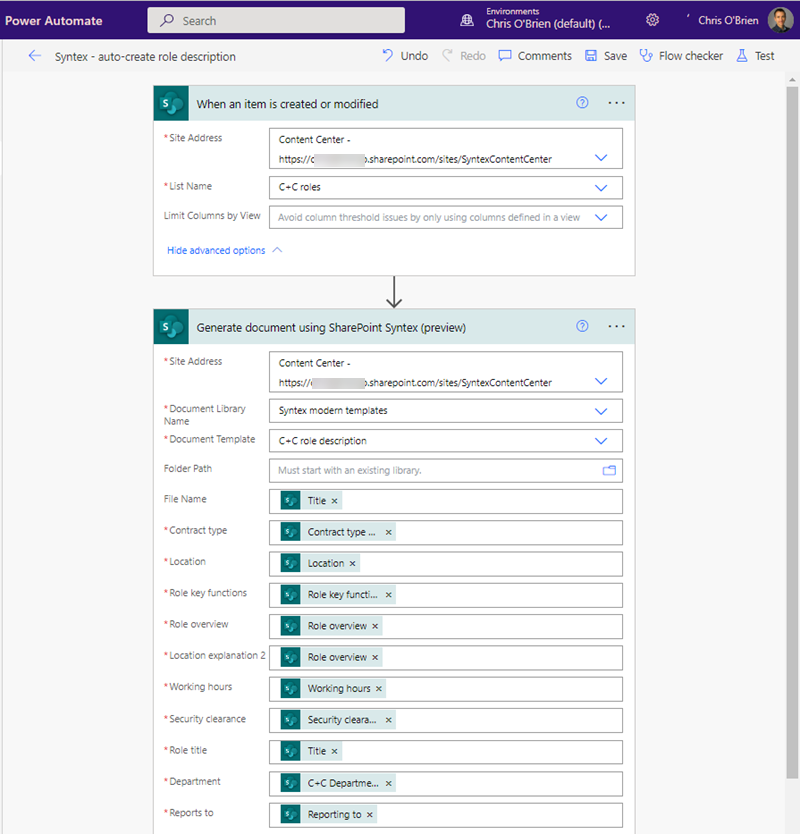
Once these details are provided the Power Automate action dynamically discovers your Syntex placeholders in the template and allows you to specify a value for each:


This allows you to drop values into your predefined placeholders within the document being generated. The most common way of doing this in Syntex Content Assembly is through SharePoint list items - you simply add an item to this list for each document you wish to create. In my demo scenario from previous Content Assembly articles, I'm using job role descriptions:


Now we have the full Syntex automation in Power Automate, we can do better than clicking a button to create each document from the ingredients. You can build whatever automation you need, but a common pattern will be to create the document as a new item is added to your SharePoint list - so in my example, every time a new C+C role is added to the list, the corresponding role description document is generated with values dropped into the placeholders. To do this, simply map the fields in the Power Automate action to the columns in your SharePoint list:

The document is now generated automatically and saved into SharePoint, with the specific role details (department, location, working hours etc.) dropped into the placeholders:

So that's document assembly. But what if you want to automate a process based on a document being classified and understood by Syntex?

Automating a process based on Syntex document understanding

For people new to Syntex and document automation, sometimes it can be difficult to envisage which processes document understanding can make a substantial difference to. It comes down to how a document is used once it has been created. We use documents for different purposes of course - sometimes simply to capture knowledge, but on other occasions for humans to use in a process such as a review or to use to start a new process. Here the document is typically created in one place and the information within it used in another, and every business has many instances of this. With Syntex, the ability to recognise document types and extract key information for it to be used in some way is what makes it game-changing - the use cases are endless. Here are some examples from my organisation (Content+Cloud) and some of our clients:

At C+C:
  • Using Syntex to read our draft Statement of Work documents - automatically notify our teams of total value of SOWs created this week and any instances of missing details (e.g. project manager)
  • Using Syntex to read Excel project pricing workbooks (used to generate project estimates quickly in pre-sales before any formal project setup) - thus helping us derive project themes and trends from all opportunities we're estimating, not just projects we're delivering
At some of our clients:
  • Using Syntex to extract risks and safety methods from risk assessments - to identify gaps and missing information so that appropriate teams can be notified, and the risk addressed
  • Using Syntex to clauses from a contract - to highlight areas of concern for investigation
  • Using Syntex to extract recommendations from safety reports 
  • Using Syntex to extract core information from 'lead lawyer' notes
Needless to say, common document types like contracts, invoices, CVs, loan agreements, credit applications etc. are all fertile ground for intelligent document automation.

Automating processes based on document contents

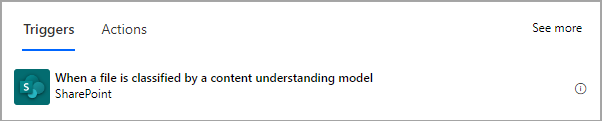
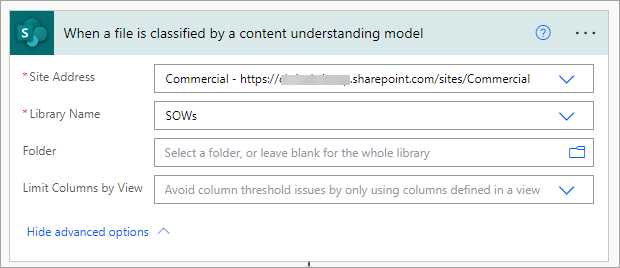
To automate document understanding in this way, we look to the Syntex Power Automate trigger which has been introduced:
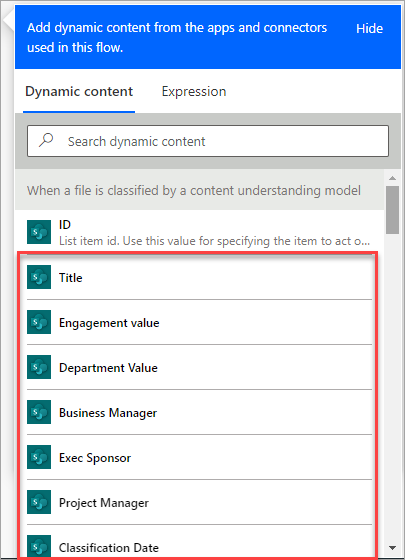
To illustrate usage, here's an example using (redacted) Statement of Work documents from our projects - before the 'full' automation, Syntex is already recognising our SOWs and extracting the engagement value, Business Manager, Exec Sponsor, Project Manager and so on:

In this scenario, to build a further 'downstream' automation based on this we use the Power Automate trigger - it recognises the extracted pieces of data for me to automate based on them:
Once the trigger has executed, all the pieces of information Syntex has extracted from the document are available to the Flow:
This will be specific to your scenario and Syntex AI model of course. If your Syntex extractors are pulling the candidate name, address, notice period and salary expectations from a CV or cover sheet then that's what will be available to make decisions on and process in your Flow.

In my Statement of Work example, let's say we wanted to post in a Teams channel if a Statement of Work was discovered without a Project Manager being referenced:


The result being:

To summarise, Syntex is recognising the document as a C+C Statement of Work, extracting details of the engagement, and automatically flagging any SOWs without a project manager specified. The ingredients used here and this type of 'quality checking' of documents is extremely powerful and can be applied to so many cases. It's a great example of intelligent automation at work.   

Summary

As I'm fond of saying, Syntex is game-changing because advanced AI and document automation tools are now coming to the masses by being baked into Microsoft 365 and SharePoint. 

Syntex was originally released to the world needing a human to trigger the document creation or document reading/understanding process, which got in the way of fully automating significant processes (or resorting to work arounds). Microsoft have now completed the circle on this, and it's another milestone in Syntex maturity and value. Microsoft's future roadmap for Syntex looks healthy, and whether you call it Intelligent Automation, Intelligent Document Processing, Hyperautomation, or something else, we should expect a lot more from the Syntex and the capability area Microsoft describe as Content Services in the future.

Wednesday, 27 July 2022

Identifying Syntex use cases - how the SharePoint Syntex assessment tool can help

If you're a regular reader of this blog, you'll know I'm a big advocate of what Microsoft are doing with SharePoint Syntex. In short, Syntex brings intelligent automation to every organisation for processes which involve documents - and in most businesses today, that's a substantial proportion of processes. We're in the middle of big shift in technology where cloud power is commoditising advanced AI and automation capabilities so that they are no longer restricted to expensive, specialist, and often industry-specific tools. Examples of this include the legal and engineering sectors, in which it has been common to invest in specialist proposal generation and contract automation software, but usually at significant cost. Instead, these AI and automation tools are now baked into core platforms such as Microsoft 365 and democratised so that 'ordinary' employees can tap into them - add-on licensing might be required, but these tools have never so widely available. 

As market awareness grows, Syntex is forming quite a few of my client conversations at the moment. Organisations are considering how this new tool could help them, and in common with other innovative technologies one of the challenges is identifying use cases within the business where Syntex could have a big impact. I have a lot of thoughts on this in general, but one thing Microsoft have done to help is release the Microsoft 365 Assessment Tool (gradually replacing what was the PnP Modernization Scanner) which now has a 'Syntex mode' specifically - this can be used to assess your tenant and usage for Syntex automation opportunities. The idea is that by scanning your SharePoint landscape and IA for certain characteristics, this could uncover areas of the business using SharePoint in certain ways where Syntex could help. In reality, Syntex really shines where documents are part of a complex or time-consuming process - and a tool can only go so far in identifying that. But the idea has merit, so let's explore what the tool provides and how it's used.

Later, we'll also consider a more rounded approach to identifying document automation and Syntex opportunities.

What the Syntex Assessment Tool provides

Once you've done the work to install and configure the tool (covered below), an assessment is run to scan your Microsoft 365 tenant in 'Syntex adoption' mode. This launches a scanning process across your entire SharePoint Online estate which, depending on tenant size, will take some time. Once execution is complete, a Power BI report is created as the output - allowing you to slice and drill around your data in later analysis. The theme of the tool is to identify areas of 'SharePoint intensity' - examples include your largest document libraries or document libraries where custom columns and/or content types have been created. Other insights include your most heavily used content types and libraries with names matching common Syntex usages (e.g. invoices and contracts). The full list of report elements and descriptions from the tool is:

  • Libraries with custom columns - Identify libraries where Syntex can automatically populate columns, improving consistency
  • Column usage - Identify patterns of column usage, to target Syntex models where they will have the maximum benefit 
  • Libraries with custom content types - Identify libraries using custom content types, where Syntex models can be used to automatically categorize files. 
  • Content type usage - Identify patterns of content type usage, to target Syntex models where they will have the maximum benefit
  • Libraries with retention labels - Identify libraries where retention labels are used, where Syntex can be used to automate and improve consistency
  • Library size - Identify large libraries where classification and metadata can improve the content discovery experience
  • Library modernization status - Identify libraries which may need to be modernized to fully make use of Syntex
  • Prebuilt model candidates - Identify libraries where names or content types suggest a prebuilt model could be applied
  • Syntex model usage - Review the current use of Syntex models in your site
So that's an overview but it's more helpful to look at the results of running the tool - the sections below dive in into the output, and then towards the end we'll zoom out again to consider the role of the tool overall. 

Looking at real-life results - the Power BI report from my tenant

The screenshots below show the report output from one of my tenants - this isn't a production tenant but does have 1000+ sites and several years of activity.

Assessment overview

Provides an overview of the assessment run you performed, covering how many sites were processed successfully vs. any failures. I had 15 failures out of 1169 site collections for example:


Libraries with custom columns

A fairly useful indicator of 'SharePoint intensity', because if lots of columns have been created it shows that tagging/metadata is important here. This could indicate that having Syntex extractors automatically tag each document could be powerful. I have 574 such libraries in my tenant:


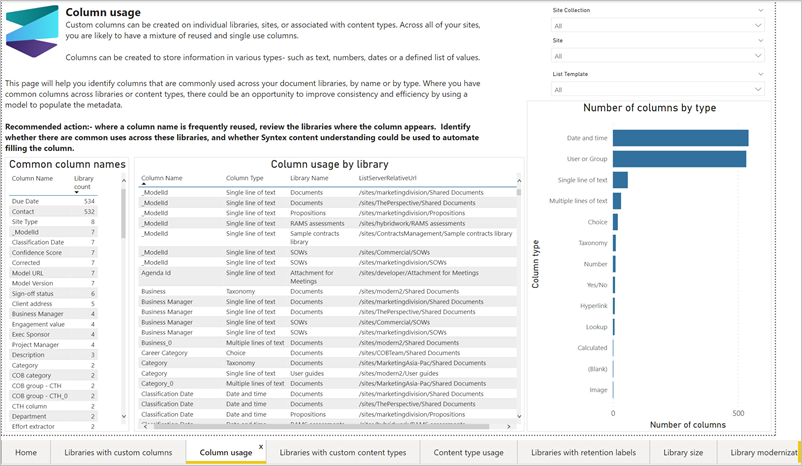
Column usage

Similar to the above, but focused on re-use of your custom columns and most common custom column types:


Libraries with custom content types

Again, a potential sign that files here are important because the library is using custom content types:


Content type usage

Gives you insight into your top content types - how many lists each one is applied to, how many items are assigned to the content type etc.


Libraries with retention labels

You might ask 'how are retention labels relevant to Syntex'? Remember that a key Syntex capability relates to information governance - the ability to automatically recognise potentially sensitive documents from their contents (e.g. contracts, CVs, NDAs, HR documents etc.) and ensure they are retained (or disposed of) with appropriate compliance. Since this is a non-production tenant I don't have too much of this, but you may do:


Library size

Again, knowing where your biggest libraries are can help you understand SharePoint hot spots, where many documents potentially relate to a process:


SharePoint modernisation status

This one is less directly connected to Syntex (relating as it does to the modern/classic status of the library in general), but relevant because Syntex can only be used on modern libraries. If you find important libraries still in classic status, you'll need to modernise them for the Syntex options to show up:


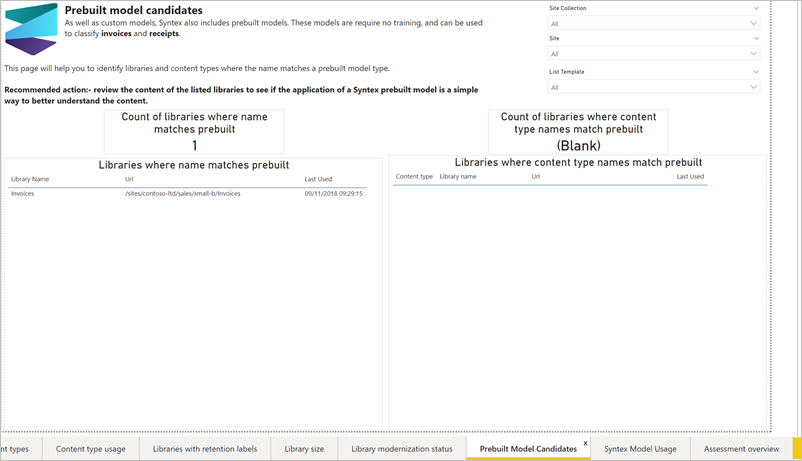
Prebuilt model candidates

Syntex ships with prebuilt AI models for receipts and invoices. This report element is simple but can be highly effective - essentially, 'find all the libraries in my tenant which have receipt or invoice in the name'. Most likely your production tenant *will* have this content somewhere, and Syntex could help provide insights or automate processes here:


Syntex model usage

This last page in the report gives insight into any existing Syntex usage in your tenant. In my case I have 8 models, and because none of them have recently executed the number of items classified in the last 30 days shows as 0:

So that's the tool output. Now let's turn our attention to how to run it in your tenant. 

Running the Microsoft 365 assessment tool

The tool itself is command-line based, hosted on GitHub, and comes in Windows, macOS and Linux flavours. Here's what you'll need:
  • A machine to run the tool
  • The tool downloaded from GitHub - see Releases · pnp/pnpassessment · GitHub
  • To register an AAD app with certificate-based auth - you'll register this in your tenant to allow the tool read access to your sites and workflows
The tool itself has a mode to help create the self-signed cert and get the AAD app registered. The command to do this is detailed on the Authentication page in the documentation. Most likely you will want to register a dedicated app for this tool rather than piggy-back on something else, because any SPO throttling will then be first restricted to this app rather than a critical production solution you have. 

The permissions required may need some thought because the 'optimal' permissions (which are needed for a full assessment) for application scope are:
  • Graph: Sites.Read.All
  • SharePoint: Sites.FullControl.All
The tool can perform a less complete audit with more restrictive permissions however - you'll get a less informative report with some sections missing, and whether that provides enough decision-making info to you is for you to decide. All of this is documented on the Permission Requirements page in the docs.

Once you're set up with authentication, it's a matter of running the tool in Syntex mode with the --syntexfull flag (if that's the assessment type you're able to run):

microsoft365-assessment.exe start --mode syntex --authmode application ` --tenant chrisobrienXX.sharepoint.com --applicationid [AAD app ID] ` --certpath "[cert path and thumbprint]" ` --syntexfull
 
Your Power BI report will emerge once the tool has trawled through your SharePoint estate.

Conclusions

So we've seen how the tool is used and what the report provides. But what value does it provide in the real world?

My recommendation - use the tool as ONE input
It was a great idea to extend the Microsoft 365 assessment tool for Syntex, and I fully agree that there are certain indicators of SharePoint use that align strongly with Syntex. However, the tool is no substitute for real process mining in your organisation - and I've no doubt the tool creators (the Microsoft PnP team) take the same view. My recommendation is to use the tool if you can, but perhaps think of it as background research before talking to the business. When working with a client to identify possible scenarios to automate with Syntex it's useful to talk to different teams and functions. I like to ask questions like these to uncover situations where Syntex automation could add high value:
  • Which document types are most important to the business? Why?
  • What types of documents do you have which are time or labour intensive (for people to read and process or create)?
  • What types of documents do you have which have a significant process around them?
  • What types of documents do you create in large volumes?
  • Which documents are part of a transmittal or submittal process? In other words, which documents are exchanged with other parties rather than spend their entire lifecycle within your organisation?
  • Which documents contain sensitive information, and should therefore potentially have information protection policies applied to them to support compliance?

Hopefully this analysis of the Syntex assessment tool has been useful. Syntex is a powerful tool to bring automation to an organisation's critical processes and we're going to see a lot more of it in the future.