Wednesday, 30 May 2007

Feature stapling

One aspect of features I wanted to cover quickly is the relationship SharePoint Features have with site definitions. Site definitions are created by a developer and subsequently used by site owners to create new sites. Much of this facility is also available by the 'Save site as template' functionality, though there are some minor differences. Additionally the 'Save site as template' functionality is removed on SharePoint publishing sites (or at least the link in Site Settings is via a HideCustomAction feature element), due I think, to some site information/functionality which SharePoint cannot properly save into a .stp file. So developers often create site definitions as part of their customization, and it's a process well-documented in the WSS SDK.

If you have created a site definition, there are several ways of using features with it. These are:-

  1. Create a site from the definition and subsequently deploy your features to the site.
  2. Include the features in the site definition (onet.xml) before using it to create sites.
  3. Use feature stapling to associate your features to the site definition.

Since the first option doesn't really associate the Features to the site definition, we'll focus on options 2 and 3.

2. Include features in site definition

This option should be used if the site definition has not yet been deployed, and no sites have yet been created from it. The section of the onet.xml file where features are associated with the site definition contains may look something like:

<Configuration ID="0" Name="BLANKINTERNET">

    <SiteFeatures>

        <Feature ID="C85E5759-F323-4EFB-B548-443D2216EFB5" />

        <Feature ID="A392DA98-270B-4e85-9769-04C0FDE267AA" />

        <Feature ID="7C637B23-06C4-472d-9A9A-7C175762C5C4" />

    </SiteFeatures>

    <WebFeatures>

        <Feature ID="00BFEA71-DE22-43B2-A848-C05709900100" />

        <Feature ID="00BFEA71-E717-4E80-AA17-D0C71B360101" />

    </WebFeatures>

    <Modules>

        <Module Name="Home" />

    </Modules>

</Configuration>


The ID value is, of course, the feature GUID. The SiteFeatures element contains features which should be activated when the site definition is used to create a site collection, and the WebFeatures element contains features for when the definition is used to create a standard web within a site collection.

3. Use feature-stapling to associate your features to the site definition

This option should be used when the site definition is already in use (and sites have been created). This is because there are risks in modifying a site definition once it has been deployed, since the site definition files on the filesystem are used for pages which are ghosted (not modified).

To use feature-stapling, you first need the feature(s) you wish to link to the site definition - these should be created in the normal way. The, you should create a 2nd feature which does the actual stapling. Sample values for the various files are shown below:

The manifest.xml file if you are wrapping your feature in a solution:

<?xml version="1.0" encoding="utf-8"?>

<Solution xmlns="http://schemas.microsoft.com/sharepoint/" SolutionId="26E1A1D9-7BB2-4e76-888E-B20184B16E3B">

  <FeatureManifests>

    <FeatureManifest Location="COB.Demos.FeatureStapling\feature.xml" />

  </FeatureManifests>

</Solution>

The feature.xml file which defines the feature 'header' information:

<?xml version="1.0" encoding="utf-8" ?>

<Feature Id="4AF9999A-0517-4224-9ED3-D2F9F87D92E2"

        Title="COB.Demos.FeatureStapling"

        Description="Staples a set of features to custom site definitions. The features/site definitions are defined in stapling.xml."

        Version="1.0.0.0"

        Scope="Farm"

        Hidden="FALSE"

        xmlns="http://schemas.microsoft.com/sharepoint/">

  <ElementManifests>

    <ElementManifest Location="stapling.xml" />

</ElementManifests>

</Feature>


And finally, the core feature definition in the stapling.xml file:

<Elements xmlns="http://schemas.microsoft.com/sharepoint/">

  <FeatureSiteTemplateAssociation Id="F6924D36-2FA8-4f0b-B16D-06B7250180FA" TemplateName="MySiteDefName#0" />

  <FeatureSiteTemplateAssociation Id="94C94CA6-B32F-4da9-A9E3-1F3D343D7ECB" TemplateName="MySiteDefName#0" />

  <FeatureSiteTemplateAssociation Id="02464C6A-9D07-4F30-BA04-E9035CF54392" TemplateName="MySiteDefName#0" />

</Elements>


The FeatureSiteTemplateAssociation element maps feature GUIDs to site defintions - note that the format of the TemplateName attribute value is <SiteDefName>#<ConfigurationID>. This obviously allows a degree of flexibility and allows you to do fairly complex things with different configurations of site definitions.

The final thing to note is that feature-stapling won't affect any sites which have already been created from a site definition, only subsequent sites. The only way to do this is to activate your features individually on the site, though obviously an STSADM script can help you activate multiple features against multiple sites.


Tuesday, 22 May 2007

SharePoint deployment options : Features or Content Deployment?

[Update 23/05/07 - clarified emphasis here is on WCM sites and added more detail on conclusion]

Today I want to document some of my thoughts on deployment in MOSS - this article is intended to provide a starting point for analysis of the different ways to deploy SharePoint artifacts between environments, particularly with regards to WCM sites rather than team/collaboration scenarios. At a high level, the options are:

  • create artifacts as features/solutions
  • use SharePoint's Content Deployment framework
  • recreate artifacts manually in each environment

Interestingly, the message from Microsoft and other respected sources was initially that features/solutions was the way to go. This seems to have changed recently with Microsoft's white paper on team-based development in SharePoint. I recommend a thorough reading of this paper, but the summary is:

  • an authoring environment is provided where developers will create artifacts such as lists, site columns, content types, master pages etc. directly (N.B. this is probably the same environment where your client does content authoring using approved master pages/page layouts)
  • artifacts are created directly using the SharePoint UI and SPD rather than using features
  • assemblies should be deployed to this environment (and the final production environment) using SharePoint solutions, to leverage the solution framework's ability to deploy to multiple WFE's in one step
  • Content Deployment is used to get everything (except assemblies and config settings - see above) to the production environment
  • alternatively, the authoring environment can be the production environment if required - use versioning/content approval to control what the end-user site consists of (I recommend having separate environments - I think this is preferable to developing master pages/page layouts in production)

Having gone through the process of creating an entire site with features, I can understand why the guidance would be to avoid using this technique in favour of something simpler. Essentially, I don't think the complexity/overhead of feature development can scale for all MOSS projects, it just takes too much effort. Additionally as I have pointed out earlier, there are issues with updating files which were initially provisioned using one of the original features. However, I also see some limitations with the approach suggested in the whitepaper:

  • the integration environment doesn't make too much sense when you consider that some of the code being developed may require the SharePoint artifacts (site columns, lists etc.) to be present. If they are not created until the authoring environment, this type of code will fail/cannot be tested here.
  • the deployment process effectively means that full integration happens fairly late in the process. The authoring environment is the first environment where all code and artifacts will be present, and this is just one step away from production. In comparison to an architecture which consists of dev/QA/staging (UAT)/production environments, and thus has more than one opportunity to test integration and deployment, this may pose extra risk.
  • one less environment for testing. As in the previous point, some organisations use an internal QA environment for their testing, and then a separate one for client UAT.

An additional environment could resolve some of these issues, but that does mean more content deployment jobs to deal with, and that's not always straightforward.

Despite this, my thinking is that the optimum deployment strategy for a WCM site makes use of both content deployment and solutions/features. The former is used to deploy most SharePoint artifacts (including master pages, layouts etc.), but the latter is used for assets which are mainly based on the filesystem:-

  • assemblies
  • web part definitions (though these go in the database)
  • config settings
  • site definitions (including feature stapling)
  • DelegateControls

(I cover those last 2 items in a forthcoming article btw).

I think this works the best because the feature framework works particularly well for provisioning, but not so well for ongoing site management. This is why there is something of a distinction between WCM sites and team sites. In a team site, the site is provisioned initially with a set of functionality and default content, and then ongoing management is really restricted to development of new bits of functionality (hence features suit this requirement well) and content/documents are added by users. A WCM site often requires very careful lifecycle management of functionality (and content), and I don't think the feature framework caters well for this.

Comments especially welcome on this topic!

Saturday, 12 May 2007

Deploying web parts as a feature

This time we're talking about how to deploy web parts as a feature. Now, deploying custom web parts the manual way is a bit of a pain - the following things are required for the web part to be used:-

  • the assembly containing the compiled web part class to be in the GAC (or site bin with appropriate CAS policy)
  • a SafeControls entry in the site web.config to tell SharePoint this control is administrator-approved
  • the .webpart (or .dwp) file which contains the web part definition (configuration) to be uploaded to the site's web part gallery

Assuming the user has appropriate permissions, the web part can then be added to a WebPartZone on a web part page. The first thing to say is that there are 2 ways of automating this process:-

  • use VSeWSS to create a feature to deploy the web part - simply hit F5 to deploy to your local server; this also generates a SharePoint solution package (.wsp) which can be deployed to other environments.
  • create a feature 'manually' by creating the files (e.g. feature.xml, elements file etc.) by hand

Both methods will take care of the 3 steps listed above, so that the files are copied and the SafeControls entry is added. I can't emphasise enough how simple VseWSS makes this process. Additionally, VSeWSS apparently allows simple debugging when F5 is hit, but I had to copy the .pdb file to the hidden folders in the GAC hierarchy to enable this. See my article on how to debug feature receivers for more information.

However, use of VSeWSS typically means there is slightly less control over the deployment options, since the tool writes the files for you and not all of the options are exposed for you to modify (I go into more detail on this in Creating lists with VSeWSS). As an example, VSeWSS will deploy web part assemblies to the GAC (with full trust), but some SharePoint admins prefer assemblies to run from private bin folders instead to isolate any harm they might do. Hence, there are some occasions where you might want to use the second option and create the feature yourself. The remainder of this article illustrates this process, using the example of a web part which should be deployed to a bin folder.

Once the webpart has been developed, we need to create the manifest file, specifying the feature details, assembly, SafeControls entry, and webpart definition file (.webpart):-


Then, we need the feature.xml file which points to the elements file and tells the framework there is another file to process (that being the .webpart file):-


The elements.xml file should look something like:-


Finally, a .webpart file should be generated to define the metadata and default property values of the webpart.


I place this in a folder underneath my feature files alongside the .dll file containing the compiled assembly.

Assuming all the files are in the right place, the solution file (.wsp) can be built using makecab.exe. This solution can now be deployed, thus taking care of the manual steps for webpart deployment. Once this process is familiar (and you have existing files to copy for the next time) this process is quite straightforward.

[UPDATE 22 November 2007 : for bin deployments, the .dll should be at the root of the .wsp file - if it is in a subfolder, it will be deployed to a subfolder of the bin directory which we do not want. See this article's comments for more details.]

Note the DeploymentTarget="WebApplication" instruction in the manifest.xml file. This ensures the assembly is deployed to the application bin folder rather than the GAC. Now, most web parts will require additional CAS policy to obtain the permissions to execute - your assembly will now have the default trust level of WSS_Minimal, so any file io, database or web service access will probably fail. I hope to cover the entries for this in a future article.

So the webpart should now be in the Web Part Gallery and ready to be added to a page.

One thing I also want to discuss is the different ways of adding a webpart to a page. These are:-

  • adding the webpart to a WebPartZone (possible in a feature by use of AllUsersWebPart element)
  • adding the webpart to the HTML markup of a page layout by dragging from SPD

The main thing to note is that if you want to be able to update webpart configuration as part of updating the page layout itself, the webpart should not be in a WebPartZone. If so, the webpart properties are stored in webpart storage, and updating a page layout (either via a feature or manually uploading to the Master Page Gallery) will not change any web part properties. However, note that web part properties can only be edited by a user if the part is in a WebPartZone. This confused me for a while, and is an important facet of the webpart architecture to be aware of.

Saturday, 28 April 2007

Deploying master pages and page layouts as a feature

This is the fourth article in my series of how to create common SharePoint site artifacts as features. Last time we looked at deploying content types as a feature.

Now that we have content types and all the supporting artifacts deployed, we can focus on deploying the things that make a real difference to how our site works - master pages and page layouts. I'll also cover web part deployment in a forthcoming post.

The basic premise is:-

  • develop master pages/layouts using SharePoint Designer (SPD)
  • save each file to the filesystem (as opposed to the Master Page Gallery) ready to be added to a feature. Unfortunately, SPD will actually screw up hyperlinks and some control references when you do this - in particular references to user controls using the '~/_controltemplates/' path. The best solution is to copy the contents of the final file into notepad, and save the file to the filesystem with the same name.
  • create the feature.xml and element manifest file for the feature. An example of an elements manifest file to deploy 2 master pages and 3 page layouts is shown at the end of this post.

Let's talk through the values used in the example below. At the module level (collection of files to deploy to a particular location in SharePoint), we specify the URL and whether the files should only be deployed to the root web or to all webs in the site collection. At the file level, attributes for the master pages are fairly simple:-

  • 'IgnoreIfAlreadyExists' - should be true if we want to overwrite an existing file of this name, false if not.
  • 'Type' - should be 'GhostableInLibrary' for files which exist in a document library such as the Pages, Style Library or Master Page Gallery libraries which exist in a SharePoint publishing site.

For the page layouts, things are slightly more complex. Here, we need to specify the following:-
  • 'ContentType' - specifies whether the file is a page layout or master page. Use the value '$Resources:cmscore,contenttype_pagelayout_name;' to specify SharePoint's internal string which represents the page layout option.
  • 'PublishingPreviewImage' - path to URL accessible image file to be displayed when this layout is selected in the listbox when creating a page.
  • 'PublishingAssociatedContentType' - this is where we specify which content type the layout should be associated with. This means the layout will automatically have this binding and will be ready for use. Note that if this value is omitted, by default your layout will be associated with the basic 'Page' content type from the publishing feature. This means any custom columns you have added will not be available. The value for this property should be in form ';#<Content type name>;#<Content type ID;#>. So a real example would be ';#Welcome Page;#0x010100C568DB52D9D0A14D9B2FDCC96666E9F2007948130EC3DB064584E219954237AF390064DEA0F50FC8C147B0B6EA0636C4A7D4;#'.


Another interesting facet of deploying files to SharePoint in this way, is that it's not possible (AFAIK) to update a file deployed from feature 'A' by a separate feature 'B'. This makes sense but gets in the way if you want to update a common file like itemStyle.xsl (used by the Content Query web part) using a feature. This won't work since the file was originally provisioned by the PublishingResources feature, not your custom feature.

I've also seen problems updating page layouts which were associated with content types created through the UI rather than by a feature.

So now that we have our lists, site columns, content types and master pages/page layouts deployed, we can create pages using the layouts and add content to the site.

Next time I'll talk about options around deploying web parts.

Here's the XML sample mentioned earlier:-

<?xml version="1.0" encoding="utf-8"?>
<elements xmlns="http://schemas.microsoft.com/sharepoint/">
<module name="MasterPagesModule" url="_catalogs/masterpage" rootwebonly="True" path="">
<file url="cScape.master" ignoreifalreadyexists="TRUE" type="GhostableInLibrary"></file>
<file url="accessible.master" ignoreifalreadyexists="TRUE" type="GhostableInLibrary"></file>
</module>
<module name="PageLayoutsModule" url="_catalogs/masterpage" rootwebonly="True" path="">
<file url="AdvancedSearchLayout.aspx" ignoreifalreadyexists="TRUE" type="GhostableInLibrary">
<property name="ContentType" value="$Resources:cmscore,contenttype_pagelayout_name;"></property>
<property name="PublishingPreviewImage" value="~SiteCollection/_catalogs/masterpage/$Resources:core,Culture;/Preview Images/ArticleLinks.png, ~SiteCollection/_catalogs/masterpage/$Resources:core,Culture;/Preview Images/ArticleLinks.png"></property>
<property name="PublishingAssociatedContentType" value=";#Welcome Page;#0x010100C568DB52D9D0A14D9B2FDCC96666E9F2007948130EC3DB064584E219954237AF390064DEA0F50FC8C147B0B6EA0636C4A7D4;#"></property>
</file>
<file url="HelplineHomeLayout.aspx" ignoreifalreadyexists="TRUE" type="GhostableInLibrary">
<property name="ContentType" value="$Resources:cmscore,contenttype_pagelayout_name;"></property>
<property name="PublishingPreviewImage" value="~SiteCollection/_catalogs/masterpage/$Resources:core,Culture;/Preview Images/ArticleLinks.png, ~SiteCollection/_catalogs/masterpage/$Resources:core,Culture;/Preview Images/ArticleLinks.png"></property>
<property name="PublishingAssociatedContentType" value=";#RNIB Welcome;#0x010100C568DB52D9D0A14D9B2FDCC96666E9F2007948130EC3DB064584E219954237AF390064DEA0F50FC8C147B0B6EA0636C4A7D4007AC2318FCE0E474eADE554A22E4B6135;#"></property>
</file>
<file url="HomePage.aspx" ignoreifalreadyexists="TRUE" type="GhostableInLibrary">
<property name="ContentType" value="$Resources:cmscore,contenttype_pagelayout_name;"></property>
<property name="PublishingPreviewImage" value="~SiteCollection/_catalogs/masterpage/$Resources:core,Culture;/Preview Images/ArticleLinks.png, ~SiteCollection/_catalogs/masterpage/$Resources:core,Culture;/Preview Images/ArticleLinks.png"></property>
<property name="PublishingAssociatedContentType" value=";#RNIB Welcome;#0x010100C568DB52D9D0A14D9B2FDCC96666E9F2007948130EC3DB064584E219954237AF390064DEA0F50FC8C147B0B6EA0636C4A7D4007AC2318FCE0E474eADE554A22E4B6135;#"></property>
</file>
</elements>

Friday, 20 April 2007

Feature to create lookup fields on Codeplex

In a recent post I posted some sample code for a feature receiver which would create lookup fields (site columns which get their data from lists). A couple of people left comments asking for full set of files.

I've put these on Codeplex at http://www.codeplex.com/SP2007LookupFields.

Some notes:-

  • I've enhanced the solution to be more generic and deal with creating multiple lookup fields in one feature. Now the name of the list can be included in the CAML and the feature receiver will parse this, find the list and fix the reference via the list GUID using the API. Note currently the list must be in the root web, though it would be trivial to extend this.
  • All the hardcoded values have been removed, e.g. the path to the file containing the CAML definition is now passed as a feature property.
  • I mentioned in the earlier post that you could have a dependent feature so that the assembly containing the feature receiver also gets deployed automatically on feature activation. This doesn't quite make sense since assemblies can only be deployed using SharePoint solutions not features. Hence I've wrapped the feature in a SharePoint solution which deploys the assembly and feature. When the feature is activated the assembly is already in the GAC and the feature receiver runs happily. Note it would also be fairly simple to enhance the solution such that the assembly gets deployed to a site bin with appropriate CAS policy for highly-controlled environments.
  • I've also included an STSADM script to take care of deploying the solution - you need to edit the URL in this file to point to your SharePoint site.

Hope this is useful, let me know if you have feedback..

Tuesday, 17 April 2007

Deploying content types as a feature

This is the third article in my series of how to create common SharePoint site artifacts as features. Last time we looked at creating site columns as a feature.

Site columns are typically used in lists and/or content types. The concepts are fairly simple since a content type is also effectively a list with a series of columns (for those who have worked with CMS2002 the equivalent entity was a template definition). The columns give the data entered into content areas on a page somewhere to be stored. However, content types in SharePoint are also a valuable unit of granularity, since workflow, document lifecycle policy and several other key pieces of functionality can be configured at this level.

Any page layout you create as a template for pages on your site must be associated with a content type. Generally each column in the content type will be matched to a field control on the page layout, allowing the author to enter content to be stored in each column.

Fortunately creating content types as features is fairly simple - CAML only, no need for a feature receiver (code). Alas VSeWSS can't help us much here but don't forget to use the CAML schema intellisense in VS by ensuring the XML file we're about to write is linked to the schema at C:\Program Files\Common Files\Microsoft Shared\web server extensions\12\TEMPLATE\XML\wss.xsd.

Initially, the part that can seem complex is the ID structure for a content type. Having been happily using GuidGen in Visual Studio every time we need an ID for something in a feature (though never trusting the first one ;-)), it comes as a surprise to have to read documentation just about IDs. As explained in Content Type IDs, the structure reflects the ancestry/parentage of a content type, meaning the parent content types can be determined very efficiently since simple string/byte matching can be used thus reducing database lookups.

The basics are:

  • find the ID of the content type you are deriving from. This can be done by either examining the content type in the SharePoint UI (Site Settings > Manage Content Types) and copying the ID from the URL querystring. Alternatively, search the feature files which the MS developers used to deploy the out-of-the-box content types. The former is probably simpler but the latter gives more scope for learning.
  • Add '00' and then a GUID you have generated (i.e. with GuidGen) to the end (suffix). You now have a valid content type ID. Note that you'll get a meaningful exception on feature activation if it's not.
  • For any child content types, to generate their IDs you can now add a simple ID such as '01' or '02' to the ID generated in the previous step. It's not necessary to suffix the ID with '00' and another GUID now since your unique ID is in the string. This means any ID's you generate will be different from anyone else's, so you can use the simple option and use a 2 digit number rather than another GUID. This means your content type IDs shouldn't grow too long.

The rest is fairly simple. Just add a FieldRef element for each site column the content type uses, specifying it's ID and name. Note that the approach we used to create our site columns meant that we got to specify the ID for them in CAML. We just need to dig out the IDs we specified there. So in both features, the IDs are in easily edited XML rather than being in any compiled code or similar so they are fairly loosely-coupled. Of course in many cases you'd choose to have both artifacts in the same feature, and in the future I'll post about factoring with relation to features.

You should end up with something like for each content type you are deploying:-


<!-- this content type is derived from the 'Page' content type from the 'Publishing' feature -->
<ContentType ID="0x010100C568DB52D9D0A14D9B2FDCC96666E9F2007948130EC3DB064584E219954237AF3900CF38CCD7FC6E8247AA124F3EE5796C20"
Name="COBArticle"
Group="COB demo content types"
Description="Base content type for articles."
Version="0">
<FieldRefs>
<FieldRef ID="{ae8e6ab8-b151-4fa4-8694-3cd24ad3b1bc}" Name="Locations" />
<FieldRef ID="{A4983A93-4B14-4a61-AE08-09108A718628}" Name="Sectors" />
<FieldRef ID="{6F26090A-C2AE-44d7-8F70-EE1663FE29F1}" Name="Disciplines" />
<FieldRef ID="{71316CEA-40A0-49f3-8659-F0CEFDBDBD4F}" Name="Article Date" />
</FieldRefs>
</ContentType>

Note that it's not necessary to repeat the fields declared in parent content types, though I notice some of the Microsoft features do this.

So now you have your content types deployed, they can now be used in document libraries/lists or associated with any page layouts you have. So next time is deploying master pages/page layouts/CSS etc. as a feature, including having the layouts automatically bound to the content types.

Sunday, 15 April 2007

Sample code - creating lookup columns as a feature

I promised in an earlier post to post the code I used to create lookup columns as a feature. The basic idea here to use CAML as far as possible to define the site column, but use code to inject the list ID which the column refers to (unknown at feature design-time since SharePoint decides the GUID for lists). Extracted below is the code for the feature receiver.

A couple of key points:-

  • this assumes a file exists at the location D:\COB.Demo.ListBasedSiteColumns.Fields.xml with the following contents (note the 'List' attribute with an empty value):-
    <?xml version="1.0" encoding="utf-8"?>
    <elements xmlns="http://schemas.microsoft.com/sharepoint/">
    <!-- _filecategory="ContentType" _filetype="File" _filename="fields.xml" _uniqueid="c0188da6-e320-44c0-b50c-cb6eaecec512" -->
    <Field
    Type="Lookup"
    Displayname="Locations"
    Required="FALSE"
    List=""
    ShowField="LinkTitleNoMenu"
    UnlimitedLengthInDocumentlibrary="FALSE"
    Group="COBDemo"
    ID="{ae8e6ab8-b151-4fa4-8694-3cd24ad3b1bc}"
    SourceId="{8c066b26-5a3e-4e1b-85ec-7e584cf178d7}"
    StaticName="Locations"
    Name="Locations">
    </elements>

  • Since most of the column definition is in CAML, this allows you to specify the ID of the column. This is useful later on when we deploy content types or lists which need to reference this site column by ID.
  • Site columns cannot be deleted when they are in use i.e. used in content types or lists. I prefer to try to delete the column on feature deactivation or reactivation, but omit error-handling so SharePoint throws an exception. This makes it clear to me why the feature cannot be deactivated. See comments in code for more information.
  • Note that the assembly which contains the code below must be available (in the GAC, or site bin directory with appropriate CAS policy) when the feature is activated. You must also specify the FeatureAssembly and FeatureReceiver attributes in your feature.xml file to register the feature receiver.
  • In terms of deploying the assembly, note that whilst you certainly can deploy assemblies to the GAC or site bin using the feature framework, you can't do it in this feature. Despite the 'FeatureActivated' name of the event handler, when your code executes the CAML won't yet have been processed. Hence your assembly won't yet have been copied and you'll get a FileNotFoundException when it tries to load the assembly. A good solution is to use a feature dependency. Here you can create a 2nd feature which deploys the assembly, and set the main feature to be dependent on this one. Additionally you can mark the assembly deployment feature to be hidden thus making the implementation a bit tidier. If it's useful to see the entire set of files I used leave me a comment and I'll put them up somewhere.
Apologies for the formatting, I will try to do something about this when I get time:-


public class FeatureReceiver : SPFeatureReceiver
{
private readonly string f_csSITE_COLS_DEFINITION_PATH = @"D:\COB.Demo.ListBasedSiteColumns.Fields.xml";

public override void FeatureActivated(SPFeatureReceiverProperties properties)
{
// feature is scoped at Site, so the parent is type SPSite rather than SPWeb..
using (SPSite site = properties.Feature.Parent as SPSite)
{
SPWeb currentWeb = null;
Guid gRootWebId = Guid.Empty;
if (site != null)
{
currentWeb = site.RootWeb;
gRootWebId = currentWeb.ID;
}
else
{
currentWeb = properties.Feature.Parent as SPWeb;
gRootWebId = currentWeb.Site.RootWeb.ID;
}


using (currentWeb)
{
// get reference to the list..
SPList referencedList = currentWeb.Site.RootWeb.Lists["LocationsList"];
string sFieldElement = null;
XmlTextReader xReader = new XmlTextReader(f_csSITE_COLS_DEFINITION_PATH);
while (xReader.Read())
{
if (xReader.LocalName == "Field")
{
sFieldElement = xReader.ReadOuterXml();
break;
}
}


string sFinalCaml = replaceListGuidString(sFieldElement, referencedList);
createLookupColumn(currentWeb, sFinalCaml, "Locations");
currentWeb.Update();
}
}
}


private string replaceListGuidString(string sFieldElement, SPList referencedList)
{
string sPopulatedGuid = string.Format("List=\"{0}\"", referencedList.ID);
return sFieldElement.Replace("List=\"\"", sPopulatedGuid);
}

/// <summary>
/// Attempt to delete the column. Note that this will fail if the column is inuse,
/// i.e. it is used in a content type or list. I prefer to not catch the exception
/// (though it may be useful to add extra logging), hence feature deactivation/re- /// activation will fail. This effectively means this feature cannot be deactivated whilst the column is in use.
/// </summary>
/// <param name="column">Column to delete.</param>

private void attemptColumnDelete(SPFieldLookup column)
{
try
{
column.Delete();
}
catch (SPException e)
{
// consider logging full explanation..
throw;
}
}


private void createLookupColumn(SPWeb web, string sColumnDefinitionXml, string sColumnName)
{
// delete the column if it exists already and is not yet in use..
SPFieldLookup lookupColumn = null;
lookupColumn = web.Fields[sColumnName] as SPFieldLookup;
if (lookupColumn != null)
{
attemptColumnDelete(lookupColumn);
}

// now create the column from the CAML definition..
string sCreatedColName = web.Fields.AddFieldAsXml(sColumnDefinitionXml);

// also set LookupWebId so column can be used in webs other than web which hosts list..
lookupColumn = web.Fields[sCreatedColName] as SPFieldLookup;
lookupColumn.LookupWebId = web.Site.RootWeb.ID;
lookupColumn.Update();
}


public override void FeatureDeactivating(SPFeatureReceiverProperties properties)
{
// delete the column if it exists already and is not yet in use..


// feature is scoped at Site, so the parent is type SPSite rather than SPWeb..
using (SPSite site = properties.Feature.Parent as SPSite)
{
SPWeb currentWeb = null;
Guid gRootWebId = Guid.Empty;
if (site != null)
{
currentWeb = site.RootWeb;
gRootWebId = currentWeb.ID;
}
else
{
currentWeb = properties.Feature.Parent as SPWeb;
gRootWebId = currentWeb.Site.RootWeb.ID;
}

SPFieldLookup lookupColumn = null;
lookupColumn = currentWeb.Fields["LocationsList"] as SPFieldLookup;

if (lookupColumn != null)
{
attemptColumnDelete(lookupColumn);
}
}
}


public override void FeatureInstalled(SPFeatureReceiverProperties properties)
{
}


public override void FeatureUninstalling(SPFeatureReceiverProperties properties)
{
}
}


If it's useful to have the full set of files illustrating the 2 features(particularly since the above isn't very readable!), leave me a comment and I'll make them available somewhere..

[Update - these have now been uploaded to Codeplex, see http://sharepointnutsandbolts.blogspot.com/2007/04/feature-to-create-lookup-fields-on.html]

Tuesday, 20 March 2007

How to debug SharePoint feature receivers

Just a quick one to detail how this is done in case someone finds it useful. For those still getting into working with SharePoint features, a feature receiver is a class which contains some code you've written to execute when a feature gets activated. Or deactivated, installed or uninstalled.

The key thing to note is that it's just standard ASP.Net debugging. The process is:-

  • deploy the assembly to the runtime location, either the GAC or the site bin directory. Note that if it's the bin directory your feature will also need appropriate CAS policy to grant the code the permissions it requires.
  • deploy the .pdb file to the same location. If this is the GAC, you can do the following:-

    - map a drive to the GAC folder i.e. C:\WINDOWS\assembly but using a UNC path such as [MachineName]\C$\WINDOWS\assembly. This allows you to browse the GAC without the shell which the framework puts on the folder, thus allowing you to see the actual structure of the files on disk.
    - locate the GAC_MSIL subfolder. In here you will see a directory for each assembly currently stored in the GAC. Find the directory for your assembly, and add the .pdb file so it sits next to the dll.


  • In Visual Studio, attach the debugger to the w3wp.exe process. Note that occasionally there will be 2 of these processes (e.g. when the process is being recycled), and it's possible to attach to the wrong one. Either do an IISReset to stop them both so that only 1 spins up with the next web request, or type 'iisapp' at the command prompt to get the process IDs of the running w3wp.exe processes. You can then match the correct one to the list which appears in the 'Attach debugger' dialog.
  • Activate the feature through the web UI (Site settings > Site Collection features/Site features). The debugger will now stop on any breakpoints you set.

And remember that the assembly must be built in debug mode so that the symbols are created.

Friday, 9 March 2007

Creating lookup columns as a feature

This is the second article in a series aimed at explaining the process of creating a MOSS site using SharePoint features. For the full series contents, see my introduction.

Last time we looked at the process of creating some SharePoint lists using VSeWSS. Sure, creating a list is a simple end-user task using the SharePoint UI, but in some scenarios such as when your site is a highly controlled internet/WCM site (or generally anywhere where we have multiple environments for dev/QA/staging/production) this deployment technique doesn't really cut it. Instead we probably want to use something more automated and repeatable than recreating such site artifacts manually each time. SharePoint 2007 supports this with Features.

Today we'll look at creating site columns which get their data from lists (lookup columns). This is a fairly common set-up, used for things like assigning metadata to a page or performing some other classification using a restricted set of values. Often the user would select the appropriate value using a dropdown shown when creating/editing a page.

Note that a similar method is to define a site column with several CHOICE elements, as below:-


However, this doesn't offer the same functionality as retrieving the values from a list. Consider the following:-

  • lists can have multiple columns whereas a choice element is effectively just one column
  • lists can have item-level permissions
  • lists can have events, workflow, versioning etc etc.

So it's clear many scenarios are better served from a site column which gets it's data from a list.

Now, when creating site artifacts as a feature, the developer will typically construct the definition in CAML, or allow VSeWSS to do this for him/her. Sometimes however, it's just not possible to do what you want with CAML. In these cases, the solution is to use a feature receiver. This is a class in compiled code (hopefully you still remember this ;-)) in which you override some methods and use the SharePoint API to define what should happen when the feature gets activated.

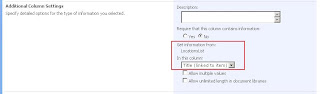
So why is it not possible to create a lookup column with CAML? After all, the following fragment successfully creates a site column which gets it's data from the list with the GUID specified in the 'List' attribute:-

<field id="{ae8e6ab8-b151-4fa4-8694-3cd24ad3b1bc}" type="Lookup" displayname="Locations" required="FALSE" list="{853CEC87-259E-47CA-97A7-42630F882FB7}" showfield="LinkTitleNoMenu" unlimitedlengthindocumentlibrary="FALSE" group="COB Metadata" sourceid="{8c066b26-5a3e-4e1b-85ec-7e584cf178d7}" staticname="Locations" name="Locations">

The answer is because list GUIDs are not deterministic. When a list gets created, whether through the UI, CAML or the API, it's GUID is assigned by SharePoint. There is no way to create a list with a GUID you have assigned. And if a list gets a new GUID each time it's created, this means it will have a different GUID in each of your dev/QA/staging/production environments. If this is your scenario suddenly that CAML fragment isn't so useful. Using this technique I would have to update the list GUID in my site column's <field> element and rebuild my site column feature every time the list got deployed to a new environment (or even redeployed). Clearly, this isn't pretty since, in addition to the extra effort, you're no longer deploying the exact same thing to live that has been tested in staging.

Hence I'd suggest any artifacts which reference a list should not refer to it in a declarative CAML. A better idea is to dynamically retrieve the list's GUID using the API (i.e. in a feature receiver), and create your site column in code. Briefly, the technique I use is this:

  • define site column in CAML using the fragment above
  • in my feature receiver, read this XML into memory
  • replace the list GUID with the real value retrieved from the API
  • create the site column using SPWeb.Fields.AddFieldAsXml(sXml) where sXml is the XML <field> element as a string
So this is kind of a cross between creating the site column in CAML and creating it in code. This gives a certain amount of flexibility since other properties of the column can be changed without having to recompile the code (simply change the value in the CAML, next time the feature runs it will read the modified values).

Note one other thing you are likely to need to do is to set the LookupWebId property on the column. This allows your column to be used in different sites in your site collection, yet still correctly reference the same list in your (for example) root site.

I'll post some sample code to do this in forthcoming post.

Assuming your CAML and the code to find the ID of your list was valid, you should see that you now have a site column which gets it's data from the list you specified when the feature is activated:-


One thing to note is that it's not really possible to delete the site column when the feature is deactivated. Generally, tidying up in this way is something you should do, but a site column cannot be deleted when it is has been provisioned on a list and has data. In this case, it's valid to not do any work on feature deactivation.

We're now well on our way to having page layouts which use content types with lookup columns. Phew! Next time, creating content types as a feature.

Friday, 2 March 2007

Creating lists with VSeWSS

This is the first article in a series aimed at explaining the process of creating a MOSS site using SharePoint features. For the full series contents, see my introduction.

Here, we'll look at creating SharePoint lists. For something so simple and core to SharePoint, they're surprisingly difficult to create as a feature. Fortunately Visual Studio extensions for WSS simplifies the process dramatically. If you've not come across this yet I'd recommend trying it - WseWSS is basically a huge help for some SharePoint development scenarios. The following articles are good background:-

Briefly, the process of creating a list in VSeWSS is as follows:

  1. Create a blank Visual Studio project. N.B. if you're actually creating a SharePoint site definition, you should select 'Team Site Definition' or 'Blank Site Definition', as WSeWSS will set you up with provisioning code which will execute whenever a site gets created from this definition.

  2. Select 'Add New Item' on the Project menu, then select 'List Definition' from the SharePoint section.

  3. Typically you should select 'Custom list' as the base list definition from the dropdown. Only select another choice if you're actually extending that list type and want to retain the original's columns. Assuming you want to create the actual list in addition to a list template (more on this later), check the 'Create an instance of this list' box. Note also the option to 'Add with event receiver' - this sets up code which which can be used to handle events on the list, for example when list items are added/edited/deleted.


  4. After clicking OK in the dialog, name your list appropriately. My recommendation would be to avoid spaces or other characters which might get encoded somewhere - the list will have a display name which you can be freer with.

    WSeWSS has now created several files in your VS project.


    We can see the following:-


    • some aspx files, the pages users will use to work with your list. Note these can be customised if you want to deviate from the standard behaviour.

    • instance.xml - this is the file to edit to add initial data to your list. Since this file is automatically linked to the appropriate schema, it's fairly straightforward to edit as VS will tell you the valid nodes as you type (shown below).

    • two .cs files containing method stubs for event handlers. These are ready for you to your implementation to.

    • schema.xml - this contains the CAML which dictates which content types the list stores, any custom views and also has references to the .aspx files we mentioned
  5. If you want to add default items to your list (and you probably do if you created an instance of it), you can edit the instance.xml file. This is made simple because VSeWSS has hooked up instance.xml to the appropriate XML schema (C:\Program Files\Common Files\Microsoft Shared\web server extensions\12\TEMPLATE\XML\wss.xsd), and you can then take advantage of VS's Intellisense which is inferred from the schema as you type:-


  6. After making any customisations such as editing instance.xml to add list items, go to the properties of your VS project and examine the 'SharePoint Solution' tab. Here you'll see VSeWSS has generated two features for each list. One is for the list instance, the other is for the list template. This can be used by users to create new lists on the site, using the columns you've defined.

  7. Go to the 'Debug' tab on the project properties, and enter the URL of your SharePoint development site. The solution will be deployed to this URL so it's important this value is entered.

  8. Hit F5 and WSeWSS will create and deploy the solution. Note that the .wsp file gets generated in the bin\Debug or bin\Release directory of your project. Keep an eye on the VS status bar in the bottom left to monitor progress. If the deploy succeeded, your list should now be visible in the site specified on the 'Debug' tab.


To anyone who has created SharePoint solutions/features by hand, VSeWSS offers a compelling alternative. No messing around with ddf files and makecab.exe, just hit F5. However, there are a couple of irritations:-

  • Since VSeWSS rewrites the feature.xml file on each deploy, there's no way to customise this file to add something which can't be entered on the 'SharePoint Solutions' area of the project properties. The major example is a feature receiver class to specify code which should run when the feature is activated/deactivated, should you want to do something here. Of course, you could edit the file at the end of the development cycle, but you know damn well there's always further tweaks and re-pasting the XML into feature.xml gets tiresome.

  • VSeWSS recreates the feature GUIDs on each deployment. This is great for development, but means you cannot have other features with feature dependencies on your list features. This can be a pain if you're trying to create a feature hierarchy or rationalise your features so that activating one will activate all required features for a given part of your solution.

Nevertheless, you now have your solution with a feature for each list you added. Well actually you have 2 features for each list you added. Why? Because one is for the list instance and the other is for the list template. Note that you can deactivate the feature for the list template if you don't want your users to be able to create lists from this one.


Next in the series - how to create site columns (fields) which get their data from lists.