Tuesday, 28 October 2008

Sample code from my top WCM tips presentation

Since AC suggested I post some sample code for some of the points I was making in my top 5 WCM tips presentation, I've now done just that. In the code you can find examples of the following:

  • Exception handler HTTP module - sends notification e-mails when an unhandled exception occurs and redirects the user to a configurable 'friendly' error page
  • Custom base class for master page - this is almost a skeleton class since your implementation will vary, but demonstrates how to use a custom base class
  • Trace helper class and matching ReSharper templates - for logging what happens in your code (this one's a bonus since I recommend these classes implement trace!)

These files can be downloaded in a Visual Studio project from:

http://sharepointchris.googlepages.com/wcmsamplecode

But for those of you who'd just like a quick look at the code, see below.  The actual classes in the project have comments to help you 'use' these things in your site - these have been removed below for readability:

Exception handler HTTP module code:

using System;
using System.Diagnostics;
using System.Text;
using System.Threading;
using System.Web;
using Microsoft.SharePoint;
using Microsoft.SharePoint.Utilities;
using COB.SharePoint.Utilities;

namespace COB.Demos.WcmSamples
{
public class ExceptionHandlerHttpModule : IHttpModule
{
#region -- Private members --

private TraceSwitch traceSwitch = new TraceSwitch("COB.Demos.WcmSamples.ExceptionHandlerHttpModule",
"Trace switch for the COB.Demos.WcmSamples.ExceptionHandlerHttpModule.");

private TraceHelper trace = null;

#endregion

#region -- Constructor

public ExceptionHandlerHttpModule()
{
trace = new TraceHelper(this);
}

#endregion

public void Init(HttpApplication context)
{
context.Error += context_Error;
}

private void context_Error(Object sender, EventArgs e)
{
trace.WriteLineIf(traceSwitch.TraceVerbose, TraceLevel.Verbose, "context_Error(): Entered error-handling module.");

// collect the last error..
var exception = HttpContext.Current.Server.GetLastError();

// process it/send e-mail..
processError(exception);

trace.WriteLineIf(traceSwitch.TraceVerbose, TraceLevel.Verbose, "context_Error(): Finished handling error, " +
"about to redirect.");

// and finally clear the error and redirect to the friendly error page..
HttpContext.Current.Server.ClearError();
HttpContext.Current.Response.Clear();
string sErrorUrl = ConfigStore.GetValue("Errors", "FriendlyErrorPageUrl");
HttpContext.Current.Response.Redirect(sErrorUrl);
}

private void processError(Exception exception)
{
trace.WriteLineIf(traceSwitch.TraceVerbose, TraceLevel.Verbose, "processError(): Entered.");

string sMessage = buildEmailText(exception);
trace.WriteLineIf(traceSwitch.TraceInfo, TraceLevel.Info, "processError(): Built error string '{0}', calling SendEmail.",
sMessage);

sendEmail(sMessage);

trace.WriteLineIf(traceSwitch.TraceVerbose, TraceLevel.Verbose, "processError(): Leaving.");
}

private static string buildEmailText(Exception exception)
{
var messageBuilder = new StringBuilder();
messageBuilder.AppendLine("<strong>Date: </strong>" + DateTime.Now);
messageBuilder.AppendLine("<br /><strong>Message: </strong>" + exception.Message);
messageBuilder.AppendLine("<br /><strong>Source: </strong>" + exception.Source);
messageBuilder.AppendLine("<br /><strong>Current user: </strong>" + Thread.CurrentPrincipal.Identity.Name);
messageBuilder.AppendLine("<br /><strong>Machine name: </strong>" + Environment.MachineName);
messageBuilder.AppendLine("<br /><strong>Url: </strong>" + HttpContext.Current.Request.RawUrl);
messageBuilder.AppendLine("<br /><br /><strong>Exception details: </strong>" + exception);
return messageBuilder.ToString();
}

private void sendEmail(String message)
{
trace.WriteLineIf(traceSwitch.TraceVerbose, TraceLevel.Verbose, "sendEmail(): Entered.");

try
{
var errorToAddress = ConfigStore.GetValue("Errors", "SendToEmail");
var sErrorSubject = ConfigStore.GetValue("Errors", "EmailSubject");

trace.WriteLineIf(traceSwitch.TraceInfo, TraceLevel.Info,
String.Format("SendEmail(): About to send error e-mail to recipient list '{0}' using SPUtility.SendEmail().",
errorToAddress));

SPUtility.SendEmail(SPContext.Current.Web, false, false, errorToAddress, sErrorSubject, message);
}
catch (Exception exception)
{
var traceMessage = String.Format("Exception thrown attempting to send error e-mail using SPUtility.SendEmail(). " +
"Exception Details: {0}", exception);
trace.WriteLineIf(traceSwitch.TraceError, TraceLevel.Error, String.Format("sendEmail(): {0}", traceMessage));
}

trace.WriteLineIf(traceSwitch.TraceVerbose, TraceLevel.Verbose, "sendEmail(): Leaving.");
}

public void Dispose()
{
// nothing to do here..
}
}
}


Skeleton base class for master page:


using System;
using System.Diagnostics;
using System.Web;
using System.Web.UI;
using Microsoft.SharePoint;

namespace COB.Demos.WcmSamples
{
public class BasePage : MasterPage
{
#region -- Private members --

private TraceSwitch traceSwitch = new TraceSwitch("COB.Demos.WcmSamples.BasePage",
"Trace switch for the base page class.");

private TraceHelper trace = null;

#endregion

public BasePage()
{
trace = new TraceHelper(this);
}

protected override void OnLoad(EventArgs e)
{
trace.WriteLineIf(traceSwitch.TraceVerbose, TraceLevel.Verbose, "OnLoad(): Entered.");

// TODO: add custom code here..

base.OnLoad(e);

trace.WriteLineIf(traceSwitch.TraceVerbose, TraceLevel.Verbose, "OnLoad(): Leaving.");
}

/// <summary>
/// Showing an example base page property..
/// </summary>
public bool UserIsAuthenticated
{
get { return HttpContext.Current.User.Identity.IsAuthenticated; }
}
}
}

Wednesday, 22 October 2008

My top 5 WCM tips presentation

Had a great time presenting my WCM tips presentation over the last week or so - first to a record attendance at the UK SharePoint user group (we hit 200+ attendees for the first time!) and then to a Gold partner audience at Microsoft today. I'd like to think the user group record was due in part to the great agenda, but suspect it was really down to the draw of free beer, pizza and curry from LBi ;-) Instead of posting a simple link to the slides, I want to run through the info here because:

  1. I can attempt to convey some of the info which was in my demos here.
  2. I know how many of you will read a blog post but not follow a link to a PowerPoint deck!

First off, this presentation isn't about discussing the standard (but critical) WCM topics which you can easily find quality information on these days. Personally I think if you're embarking on a WCM project your starting point for information should be Andrew Connell's book (and his blog articles if you don't already subscribe), and reading in detail some of the key MSDN articles which have been published on the subject (I list my favorite resources at the end). In these places, you'll find discussion on some of the sub-topics (non-exhaustive list) which I see as the bedrock of WCM:

  • Security
  • Accessibility
  • Optimization
  • Deployment

So instead of covering these in detail, my tips focus on key techniques I've found to be powerful in delivering successful WCM projects. They won't be suitable for all WCM projects, but hopefully they give some food for thought and provide some extra value to the WCM info already out there.

Tip #1 - Implement HTML markup in user controls, not page layouts in SPD

Explanation:

Instead of adding your page layout HTML to the page layout in SPD, create a 'parent' user control for each layout which then contains the HTML and child user controls for this layout. This means you have a 1-to-1 mapping between page layouts in SPD to 'parent' user controls within your VS web project. These parent user controls contain the actual markup and also any child user controls used on your page.

Slide bullets:

  • Faster development experience - less SPD pain [instantaneous save rather than 3-5 second save plus occasional unwanted changes to markup]
  • Page layout markup now in primary source control [alongside your other code]
  • Much simpler deployment of updates [simply XCOPY user controls when you deploy updates to other environments]

What it looks like:

So we see that our page layouts now have very little markup (note the ASP ContentPlaceholder controls must stay at the top level, so our parent user control gets referenced in PlaceholderMain):

PageLayoutMarkup

..and then all of our real markup code is in the parent user control and child user controls which it references:

UserControlMarkup

Tip #2 - create custom IIS virtual directory pointing to your web project files

Explanation:

Most project teams I see put their user controls under 12/CONTROLTEMPLATES (often in a sub-folder) so as to follow what SharePoint does. This is mandatory in some techniques (e.g. custom field controls, delegate controls), but is not required for the type of WCM page user controls discussed in tip #1, and there are arguments for not storing those in the 12 hive. In summary, having a custom IIS virtual directory pointing to your VS project means we avoid having separate design-time and run-time locations for the project files.

Slide bullets:

  • Store user controls/page furniture files (e.g. image/XSL) here. Remove code files (e.g. .cs files) for non-dev environments
  • Faster development experience – no files to copy, no post-build events. Just save and F5!
  • Important if using tip #1 – don’t want to have to compile project [for post-build event to copy files] just for a HTML change

What it looks like:

In our case we created a virtual directory with an alias of 'MIW' (the name of our website) which points to our project files:
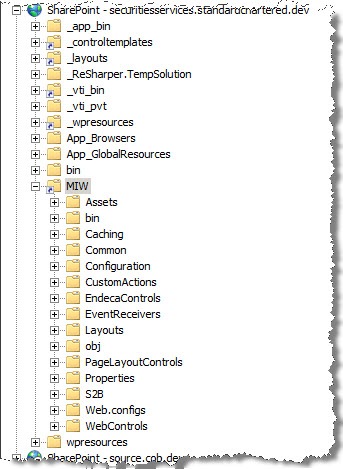
CustomIisVirtualDir

All our user control/page furniture file paths then look like '/MIW/PageLayoutsControls/foo.ascx'  etc.

Tip #3 - make life easier for the site authors/admins [reduce their stress and they'll be on your side]

Explanation:

This one is a non-technical tip I wanted to throw in there - whilst we're busy getting the front-end of the website right, I think it pays to also think about how authors/admins will use the back-end of the website (N.B. here I mean 'business admin' rather than IT pro). Although this is probably verging on the 'political' side of things, I'd advocate making their life as easy as possible - they often have a loud voice within the client organisation, and if they have bad feedback on what you're building that's a black mark against you.

Slide bullets:

  • Consider providing custom tools if the ‘SharePoint way’ is not simple enough (e.g. user management)
  • If you use custom lists for site data, provide a link for authors to find them (e.g. using CustomAction)
  • Remember these people are rarely SharePoint gurus!

What it looks like:

Clearly this will look different for every project, but for our client we created a custom Site Actions sub-menu with some key links:
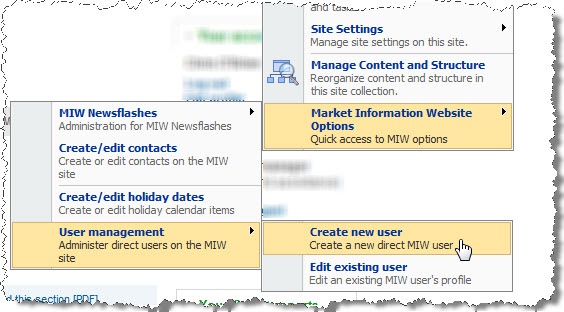
CustomSiteActionsOptions

This sub-menu provides navigation to a couple of key lists used to power the site, but also to some custom screens we created for user management. Here, we also did some work to simplify things by wrapping up the relatively complex process of creating a user in the membership provider, adding them to various security groups across 2 sites (we had 2 'sister' MOSS sites with single sign-on) and setting certain profile fields, into some simple screens which give a convenient summary of what just happened after creating a new user:
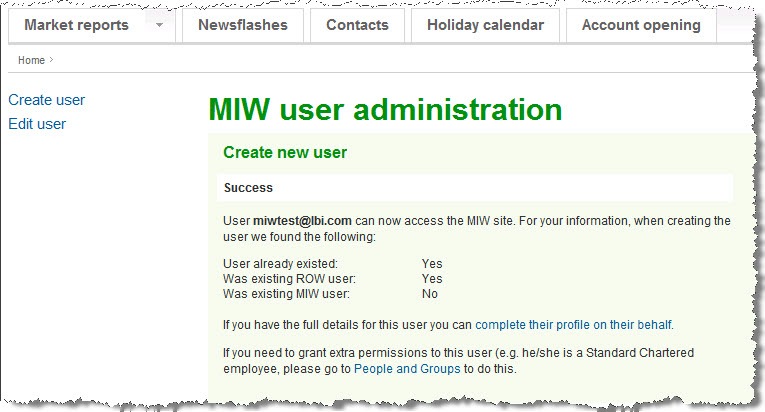
CustomCreateUser

Finally, the 'edit profile' screens used by business administrators were adapted from those used by end users, so that the admins became very familiar with each step of the 'profile wizard' and were better able to support their users.

Tip #4 - plan for unexpected errors

This is an interesting area, partly because we're talking about that category of things which 'should never happen', but sometimes do. Having this conversation with a client (or non-technical management within your own organization) can be fun because the typical response is "whaddya mean the website going to go wrong?", but anyone familiar with software development principles knows there is no such thing as bug-free software. So the important thing is how do we handle these cases when they do occur.

There are several tips here, so I'll break them down into 4.1, 4.2 and 4.3:

 Tip #4.1 - implement 'friendly' pages for 404s and unhandled errors

Explanation:

In brief, users of a public-facing website should never see a .Net error if something goes wrong on the website! If this ever does happen, the user is left with the feeling that your website is unreliable and can lose confidence in the organisation - think about it, do you ever remember seeing this kind of error on amazon.com/eBay.com/microsoft.com?

Slide bullets:

  • Typically use custom HTTP module to override SharePoint's default error-handling behaviour, checking for:
    • HttpContext.Current.Server.GetLastError()
    • HttpContext.Current.Response.StatusCode = 404

What it looks like:

On the Standard Chartered site, our 'friendly' message looks like:
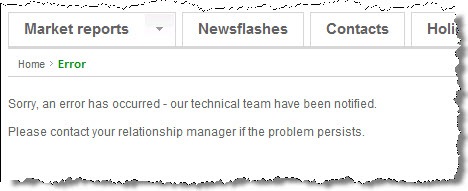
CustomErrorScreen

Tip #4.2 - implement e-mail notifications to developers for errors

Explanation:

Sorting the user experience is one thing, but what about actually fixing the source of the problem? A key element of this is being alerted whenever a user does experience a problem, rather than relying on them reporting it. When I first told the team we'd be implementing this, I was really thinking about the UAT phase, and also that critical week or two after go-live when you'll occasionally discover some latent issue which had managed to hide itself throughout all the testing. However, what we found is that we got even more value from this in the earlier dev/testing phases. At LBi, the test team sit near the development team, so when the Outlook 'toast' popped up with an exception message which wasn't 'known' by the team, I'd use the information in the e-mail to work out which tester triggered the error, then armed with the stack trace and other information, shout over and ask exactly what they had done to arrive at the problem. Much more efficient than waiting for a full bug report at the end of the day/week!

Slide bullets:

  • Means an error cannot happen without the team being aware
  • We built this for production, but was even more useful in dev/testing!
  • Implemented in same custom HTTP module as error page redirection

What it looks like:

ExceptionEmail

Tip #4.3 - implement proper tracing in your code

Explanation:

So being alerted about unhandled exceptions is one thing, but the stack trace and other details in the e-mail are often not enough information to actually fix the bug easily. This can be because we can't see exactly what happened in the code (e.g. values of variables) leading up to the error. The only real way to obtain this information from production servers (or anywhere where we can't use the debugger) is to add trace/log statements to your code, which when enabled will write out these details as the code executes. Since this has to be done manually, clearly the trade-off here is the time to implement this robustness. I would strongly recommend using a code productivity tool such as ReSharper (e.g. going beyond Visual Studio snippets) to drop in these statements quickly rather than relying on typing or copy/paste.

Slide bullets:

  • Provides ability to quickly locate bugs in your code
  • Trade off is time/effort to implement
  • Consider productivity tools such as ReSharper/CodeRush to lessen impact

What it looks like:

This is showing trace output with DebugView - notice I've configured DebugView to show me 'warning' trace statements in yellow and 'error' statements in red:

TracingError

Tip #5 - design for flexibility

Again, this one is broken down into two tips:

Tip #5.1 - using SharePoint lists for configuration data

Explanation:

As I said in my presentation abstract, since the only certainties in life are death, taxes and clients changing their minds, we should always aim to develop a solution which is flexible enough to accommodate some of the changes we may be asked to implement. We're probably all used to the idea of storing site data which may change in SharePoint lists, but I like to extend this to 'configuration' information which dictates how the site behaves. The 'Config Store' framework I wrote for this can be found on Codeplex at www.codeplex.com/SPConfigStore - this provides the list, content type, caching and API to retrieve 'config items' in code.  So to take an example from our project, we had a switch for whether newly-created users need to change their password on first logon. Clearly this is something we need enabled in production, but can be a pain in our test environments where the client needs to create users and then get on with running specific test scripts. So, by having such a switch in a SharePoint list, we get the benefit that key configuration of the site can be changed as easily as changing a SharePoint list item, as opposed to perhaps being stored in web.config where I'd need to RDP onto the server, open a file, trigger an app pool recycle etc.

We stored 130+ configuration settings in our Config Store list, and of course, applied appropriate permissions so that unauthorized users could not access the list.

Slide bullets:

  • Use SP lists for values the client may wish to edit, but consider caching

What it looks like:
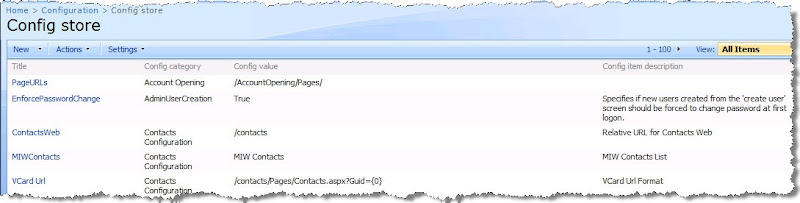
ConfigStore

Tip #5.2 - implement a custom master page class

Explanation:

Although SharePoint gets master pages from .Net 2.0, these really deal with implementing a consistent look and feel only. If you want consistent functionality or behaviour across your pages, a custom master page class can help here. To implement this, the key is to modify the class which your master page derives from in the @Master directive. We used this approach to implement code which needs to execute on every page load, and even if you don't have this requirement from the start, I'd advocate using it so you have a convenient place to put such code if the need arises.  

Slide bullets:

  • Use for any code which should execute on every page load
  • Examples on our site:
    • Check if trial user/when trial access ends
    • Check if accepted Terms & Conditions
    • Check has supplied their initial user profile info
    • Enforce use of HTTPS
  • Can also use to expose properties for commonly checked items (e.g. username, logged in time)

What it looks like:

<%@ Master language="C#" Inherits="MyCompany.MyClient.MyProject.BasePage" %>

Conclusion/resources

So that's it for my tips, all feedback/suggestions welcome! In terms of key resources, in addition to AC's book here are some selected articles and so on I'd recommend looking into:

Monday, 6 October 2008

Speaking at the UK SharePoint user group on WCM next week

Next week's UK user group is conveniently being hosted by LBi, my current employer for a Web Content Management (WCM) special. Now I could be biased here, given that the two presenters are me and my current boss, but I think we have some great sessions. In the first, we'll do a case study session partly based on the site I talked about previously in SharePoint WCM in the finance sector and Developer lessons learnt - SharePoint WCM in the finance sector, and in the second we'll talk about practical steps/best practices to consider when building such sites.

The date is Thursday 16th October, location is London (Brick Lane/Liverpool St), and we kick off at 6pm for a 6:30pm start - for folks who aren't local or can't make it down, slides etc. will be posted either here or on the SUGUK site. The link for full details and registration can be found at the end of this post - the full rundown on the sessions is:

Session 1 : Web Content Management in MOSS, real life case study – Riaz Ahmed
This session will showcase how SharePoint content management has helped the world’s most international bank, a top 25 FTSE 100 company, deliver an online digital solution for clients, analysts and employees.
See how SharePoint has helped empower analysts worldwide to create, publish and share research information. See how SharePoint has helped clients and investors get access to market information to help decide their next multi-million pound deal. See how flexible, extensible and customisable the SharePoint web content management platform can really be.

Session 2 : Best practices/lessons learnt: building MOSS Content Management sites – Chris O’Brien

This presentation explores key tips and developer techniques for building WCM sites, based on the experience of delivering sites such as that shown in the earlier session. As well as key topics such as security, optimisation and deployment, much of the presentation will cover practices which are not widely documented but which can shave time and make the difference on a very tight timescale. And, since the only certainties in life are death, taxes, and clients changing their minds, we’ll examine how to build a site which is as flexible as possible whilst not being substantially more difficult to implement. Finally, we’ll wrap up with a discussion on how developers can keep their sanity by being able to fix bugs quickly (especially when the boss is stood over their shoulder!) regardless of where they occur in the code, before going on to open Q & A.

For full location details and to register see http://suguk.org/forums/thread/13880.aspx.

As usual, we'll be going for a pint to continue the chat afterwards - all are welcome!

Sunday, 28 September 2008

SharePoint dev strategies - it's not all about Features!

Something I've been meaning to discuss for a long time is the decision to develop SharePoint artifacts using Features or some other approach. I actually discussed this back in May 2007 in my post SharePoint deployment options : Features or Content Deployment?, but feel it's a topic worth revisiting/expanding on as I often see teams developing with Features without fully working out what exactly they are getting out of this approach. As you can guess by the article title, I'm not sold on the idea of using Features all the time (readers who have followed this blog from the start might find this surprising given I wrote many articles on how to work with Features) and want to put forward some points to consider when working out whether you need them or not.

Let's first consider some (selected) characteristics of Features:

  • Provide a means of deploying SharePoint artifacts such as list templates/site columns/content types to multiple environments (e.g dev, test, production)
  • Currently the only way to deploy such artifacts across multiple site collections
  • Require some extra overhead to create, even with the community tools available (in comparison with creating artifacts directly in the SharePoint UI)
  • Little/no support for certain key updates (e.g. updating a content type which has already been deployed and is in use) - updates must be done through the user interface or the API, since modifying the original Feature files to make changes is unsupported.

Given these points, one scenario I really can't see the benefit of Features for is when the solution consists of just one site collection - which is often the case for WCM sites. Why go through the extra hassle of packaging up artifacts into Features and be faced with difficulties managing updates when the artifacts will only ever exist in one site collection anyway? Sure, they may need to be deployed between environments but we have other ways of doing that.

N.B. The same applies to site definitions - why go to the trouble of creating a custom site definition when only one site will ever be created from it?

The alternative

If you aren't forced into using Features to deal with multiple site collections, not using them could be the 'most valid' choice. In my recent WCM projects, I haven't used Features for anything which doesn't require a Feature (e.g. a VS workflow, a CustomAction etc.) for a long time now, including the project I discussed recently in SharePoint WCM in the finance sector and Developer lessons learnt - SharePoint WCM in the finance sector. Certainly given the extremely tight timescale on that project, I actually feel we could have failed to deliver on time if we had used Features.

Instead, my approach is to create a blank site in the dev environment, and do all the list/site column/content type/master page development there using the SharePoint UI and SPD. My next step (perhaps not surprising to regular readers) is to use my Content Deployment Wizard tool to move all the SharePoint artifacts to the other environments when ready. Equally, you could choose to write your own code which does the same thing using the now well-documented Content Deployment API. You'll need to deal with any filesystem and .Net assets separately (generally before you import the SharePoint content on the destination), but in my view we've at least drastically simplified the SharePoint side of things. This seems to work well for many reasons:

  • More efficient since no development time lost to building Features
  • The update problem described earlier is taken care of for you (by the underlying Content Deployment API) - as an example, add a field to a content type in dev, deploy the content which uses it and the field will be added on the import site
  • Concept of a 'package' is maintained, so .cmp files produced by the Wizard can be handed to a hosting company for them to import using the Wizard at their end. I hear of quite a few people doing this.
  • We can store the .cmp files in source control and use them as part of a 'Software Development Lifecycle' approach. My approach (and I'd guess that of others using the tool in this way) is to store the .cmp file alongside the filesytem files such as .ascx files for the current 'release', and import them as part of the deployment process of moving the release to the next environment.

As an aside, when I decided to write a tool which would simplify dealing with dev/QA/UAT/production environments on SharePoint projects, I was initially torn between 'solving the content type update problem' and something based around the Content Deployment API. One reason why I decided on the latter was because the CD API already seemed to have solved the other issue!

Now I'm certainly not saying it works perfectly every time (it doesn't, though is much improved following SP1 and infrastructure update), but in my experience I seem to spend less time over the course of a project resolving deployment issues than I would do building/troubleshooting Features. Additionally, using Content Deployment allows deployment of, well, content - if your solution relies on pre-created publishing pages or you have a scenario such as your client creating some content in UAT which needs to be moved to production before go-live, Features won't help you here. The Content Deployment mechanism however, is designed for just that.

Where do Solutions (.wsp) fit in all this?

So to summarize the above, my rule of thumb for projects which aren't built around multiple site collections is don't use Features for things which don't absolutely require them. So where does that leave Solution packages (.wsp files) - should they be abandoned too? Well no, definitely not in my view. Solutions solve a slightly different problem set:-

  • Deploying files to SharePoint web servers such that each server in a farm is a mirror of another. Ensuring all web front-ends have the same files used by SharePoint is, of course, a key requirement for SharePoint farms - this applies to Feature files when using them, but also to assemblies, 12 hive files etc.
  • Web.config modifications e.g. the ‘SafeControls’ entry required for custom web parts/controls
  • Code Access Security config modifications e.g. those required for controls not running from the GAC
  • Some other tasks, such as deployment of web part definition files (.webpart)

Really, there's nothing stopping you from doing all this manually if you wanted to (especially if you're always deploying to a single server, so there are less things to keep in sync). But the point here is that Solutions genuinely do make your life easier for comparatively little effort, so the 'cost/benefit' ratio is perhaps different to Features for me - the key is using one of the automated build approaches such as WSP Builder. So, my recommendation would generally be to always use Solutions for assemblies, 12 hive files etc., particularly in multiple server farm environments.

Conclusion

My rules of thumb then, are:

  • Consider not using Features (and site definitions) if your site isn't based around multiple site collections - using the Wizard or some other solution based on Content Deployment can be the alternative
  • Use Solutions if you have multiple servers/environments, unless you're happy to have more work to do to keep them in sync
  • If you are using Features, plan an approach for dealing with updates such as content type updates

My message here possibly goes against some of the guidance you might see other folks recommend, but I'm just going on the experience I've had delivering projects using different approaches. As always, the key is to consider deployment approach before you actually come to do it!

P.S. Also remember, deploying using backup and restore is a bad idea ;-)

Monday, 22 September 2008

Source code for SP Content Deployment Wizard now released!

Back from holiday now, and hopefully with something useful for those of you who use my Content Deployment Wizard tool to move SharePoint content around. I've now released the source code for the tool onto Codeplex, so if you have an interest in the Content Deployment API or just want to see how the wizard works, it's now all there for you. This is kind of a big step for me as I saw the tool more as a "free product" (built over many late nights after Suzanne was asleep!) rather than an open source project - I figured I would release the code at some point, but intended to wait a little longer until the next release, since I'm actually halfway through changing the code over for the new functionality. However, my hand was slightly forced because the Codeplex administrators suspended the project due to me not having supplied source code - apparently this is a rule of the site which I had missed. I wasn't happy with the tool not being available for people who wanted it, so wanted to rectify this as soon as possible. So this explains why anybody attempting to download the tool over the last 3 or 4 days was unable to - sincerely apologize for the inconvenience people!

In any case, it had been on my mind because there seems to be an increase recently in people building their own tools and functionality around the Content Deployment API - it's certainly an area with a lot of scope for custom solutions, and folks occasionally drop me a line with a request for a help. So it seems right to stop being precious about it and release the code sooner rather than later. I also fixed an annoying bug which caused an unhandled exception if a user with insufficient SharePoint permissions used the tool.

Anyway, hope it's useful to someone!

Content Deployment Wizard - Codeplex site homepage
Content Deployment Wizard - Release 1.1 with source code

P.S. I have a couple of things temporarily ahead of Wizard development in the queue, but as mentioned previously the focus for next version will be to add support for command-line use/scripting. This means the Wizard can be used in scheduled/automated deployments, with the benefit of the granular selection of content to deploy which standard Content Deployment does not provide.

Sunday, 31 August 2008

Developer lessons learnt - SharePoint WCM in the finance sector

So in my recent SharePoint WCM in the finance sector post, I talked about what we built and why I think the result is kind of interesting. What I want to do today is share some of the technical lessons learnt, and give a sense of what worked and what didn't. As I mentioned last time, UK-based folks will hopefully be able to gain more than I can provide here when the site gets presented at the SharePoint UK user group, meaning we'll answer any question you care to come up with, not just some of the developer stuff I want to discuss today.

Now to frame all this, it's important to consider the type of project this was - the terms mean slightly different things to different people, but to me the emphasis was on 'development', as opposed to 'implementation' or 'customization'. In code terms, we ended up with the following:

  • 17 Visual Studio projects in total
  • 4 Windows services
  • 5 nightly batch processes
  • 5 supplementary SQL tables (outside of the SharePoint db)

Not bad for 8 weeks work. As an aside, although the first number seems surprisingly high, in the technical washup I did with the team nobody thought this wasn't the right way to factor the code. This is partly explained by the fact this single project is actually part of a bigger program of projects being done for the client, and also partly by the complexity of the Endeca search implementation and batch processes we needed.

What worked well (in no particular order)

  • Using a 'development farm' amongst the developers - this means the content database is shared, and thus no effort is required for one developer to see the lists, site columns, content types, master pages/layouts etc. created by others. This is actually the only way to do team development in SharePoint for me, but worthwhile mentioning it as I know not all SharePoint shops do things this way.
  • Proper use of tracing - this is the idea of writing log statements throughout code to easily diagnose problems once the code has been deployed to other environments (e.g. QA/UAT/production). We used the standard .Net System.Diagnostics trace framework with levels of Verbose, Info, Warning and Error - this has been familiar to me for a long time but a couple of the devs were new to it and agreed it was invaluable. In particular, we had a lot of library code and it's often difficult to find logic bugs when you can't directly see the result of something on a screen. For me, tracing essentially gives you the power to find certain bugs in seconds or minutes which could otherwise take hours to resolve. Although adding the tracing code can slow down coding, to mitigate this we used..
  • ReSharper - at the start of the project I created several ReSharper templates to call our common code e.g. for tracing, and got all the team to download trial versions of ReSharper. This meant we could add trace statements in just a few keystrokes, meaning the 'I didn't have time to add trace!' excuse couldn't be used :-)
  • My Config Store framework based on a SharePoint list * - we stored over 130 'configuration items', from 'True'/'False' config switches such as 'enforce password change for users first logon,' to known URLs, to certain strings displayed throughout the site. We also found a couple of areas for improvement (e.g. field not big enough to store XML fragments!) which will hopefully make it into the next release.
  • Implementing logging/notifications for unhandled exceptions - I know the MS Enterprise Library a component for this, but we developed our own using a HTTP handler which sits in front of SharePoint's SPRequest handler. This means that whenever something happens in the code which we're not expecting, we get to find out about it immediately and can see the stack trace and other debug info in the e-mail. This was invaluable when the testers got to work, as it meant we could proactively deal with bugs before they even got reported. As soon as we noticed a mail with a new exception, we shout over to the particular test guy (identified by the user ID) "What exactly did you just do?" (which impressed them greatly!), so we nail the exact set of circumstances/data which caused the bug right there and then. 
  • My Content Deployment Wizard tool * - I also played the 'deployment/release manager' role on this project, so I was probably the guy who benefited from this the most but I've actually used it somewhere on every single project I've done since building it. For releases when the team had updated x page layouts, x lookup lists and x Config Store items, the tool is invaluable for picking out just the changed items and deploying them to the other environments. For Config Store items in particular it was useful as some config is different between environments (similar to web.config keys) so you don't want to overwrite the entire list. For early releases when the team had made lots of of complex 'schema' updates (such as lots of intricate changes to site columns/lookups/content types), due to the time pressures I elected to take the 'everything will definitely work this way' route and drop the site collection on the target and import the whole thing (since no valuable data to preserve) so there are some complex deployment scenarios I still haven't fully tested personally, but with 3 environments on top of the dev environment to deploy to the Wizard was prettes tilitiy much a lifesaver.
  • Cross-site lookup field by SharePoint Solutions - this solves the problem that a lookup column can only lookup data in the current web. We use this for several key sets of data so we get to have one copy and one copy only. Damn useful.
  • LINQ to SQL - we use this for CRUD operations in our supplementary SQL tables, and the guys who used it agreed they saved significant time over the standard approach of writing ADO.Net code.

* hopefully it doesn't come across as shameless self-promotion to include these - the very reason I built them was to solve recurring problems I saw on SharePoint dev projects, and both utilities really did help us here.

Project challenges (in no particular order)

  • Team Foundation Server weirdness - for reasons we still haven't established, we found the .csproj file for the web project (i.e. the most critical VS project!) would be checked out whenever a developer compiled the solution. With multiple checkout enabled, this means that pretty much every developer had the project file checked out all the time, regardless of whether he/she was making any project changes (e.g. adding new classes). This meant we had many more merge issues than normal - not fun.
  • VM issues - for a while we thought ReSharper was the culprit here, but a VS hotfix brought more stability. A hunch says at least some of the issues are 64-bit related (our dev environment was matched to production in this respect), since often the problem would manifest itself via Visual Studio (a 32-bit application remember). Frequent VS crashes, "attempted to read or write protected memory" messages in the event log - oh joy.
  • Failure to identify shared code soon enough - often a concern on complex development projects when the team is working at high speed. We did daily standup meetings (similar to scrum) but I suspect we may have focused too much on issues rather than what was being 'successfully' developed. So we lost some time to refactoring to bring things back in line, but this is why I like to think of the approach as 'Dangerously Rapid Application Development' (for those who remember the term ;-))
  • Issues arising from sharing IP addresses on SSL - in several of our environments, we attempted to use the technique documented by Adrian Spear in To setup SSL on multiple Sharepoint 2007 web applications using host headers under IIS 6.0. I've used this successfully in the past but had some problems this time round - despite working fine in our QA environment, we had problems in other places. After carefully analyzing the differences, I worked out that this technique will only work if the SSL certificate being used is a wildcard certificate or is matched on the machine name rather than the site URL. This might be obvious to other people but wasn't to me!

Hope someone finds this useful!

Wednesday, 13 August 2008

SharePoint WCM in the finance sector

You might have been wondering where I've been for the last few weeks, so I thought I'd show rather than just tell. I rarely talk about specific 'daytime' projects I work on, but I guess I'm quite proud of this one and you might be interested in what we've done. I've been working with LBi (Europe's biggest design/technology agency) recently, leading a team of 5-7 developers on a WCM (Web Content Management) project for one of the global investment banks. You can see some aspects of what we've done with SharePoint in this post, and I'll follow up with some developer-to-developer info about techniques we used in the next one. Additionally, for UK-based folks I think Riaz Ahmed (my current boss and Mr SharePoint at LBi) is hoping to do a real show and tell at the UK SharePoint user group in a couple of months, where there'll be the opportunity for Q&A and to pick up far more info/lessons learnt (both technical and non-technical) than I can provide here.

The site is targeted at a closed audience over the internet (our client's clients), so unfortunately you can't see it for yourself - the site provides analysts with high-value information on financial markets, primarily in the form of market reports and newsflashes, though there are other content types. The user experience we were tasked with implementing (created by LBi's design team) means the user gets to have some pretty impressive functionality around all this (IMHO) which differentiates the service from others.

The centrepiece is the market report data, which is held for many countries and topics:

MarketReport_b

This is imported nightly from a master datasource (thus lending itself nicely to caching), and our client can also add comments to the imported data via SharePoint WCM page editing. Perhaps the slickest piece of functionality is the facility for the user to create personalized 'smart reports' with specific markets and topics which interest him/her. These are saved against the user's profile for quick access:

ConfigureSmartReportSmall_b

At runtime we build the personalized page from the same cache layer used by the standard pages in the first shot.

Since financial markets change quickly, our client's authoring teams (distributed around the world), can quickly create newsflashes via SharePoint publishing functionality for display on the site - this is controlled via SharePoint workflow. Users can search and filter by country, date, high priority flag and can also store in a 'My newsflashes' bucket for quick retrieval:

NewsflashesSmall_b

Users also have the option of receiving e-mail alerts when newsflashes are added to the site (immediate for high priority newsflashes, nightly batch for others), and can tailor their e-mail preferences by country...

MyAccountCountryPreferencesSmall_b

..and topic:

MyAccountMailPreferencesSmall_b

The site also has a ton of other good stuff, such as:

  • single sign-on with a sister site
  • integration with a higher-level portal which can authenticate users itself (meaning users do not log-in separately on our site)
  • WCAG 'A' -level accessibility - accessibility wasn't particularly a focus of the client for this site, but (happily) is just how things are done here anyhow. We use a lot of JavaScript to enhance the user experience but it always provides equivalent functionality when disabled - I have to say the LBi front-end developers use some incredibly innovative techniques to achieve this, I've rarely seen anything like it (see below for some examples).
  • integration with Endeca for search (including the newsflash landing page you see above - this is powered by search)
  • custom admin functionality for user creation/management
  • many many smaller but 'interesting' requirements such as newsflashes having user-selected 'related items', attachments etc etc!

Rich, accessible controls

In addition to all the personalization, one of the things that I love about the user experience is the funky controls we have. So why have a dull dropdown like this:

StandardDropdown

...when you can have one like this:

CountryControlExpandedMid 

This allows us to present only countries the user has told us they are interested in in the dropdown (thus avoiding clutter), whilst allowing them to easily see data for other countries if they have the occasional need to. To do this, clicking the 'More...' link expands the dropdown to show a second section containing the other countries (or more specifically, the other countries they are permitted to see):

CountryControlExpandedFull

Similarly for multiple selections, why have this:

StandardListbox

...when you can have this:

CountryControlMultiExpandedMid 

Again, clicking the 'More...' link allows the user to select a country not in their 'preferred' countries:

CountryControlMultiExpandedFull

Personally I think this makes for a great user experience, and it's all accessibility-compliant.

Project plan : caffeine

The development time for everything you see here (and everything you don't) was around 7-8 weeks, though this excludes some of the front-end development (HTML, CSS, JS). We're not quite over the finishing line yet, but are in the final stages of user acceptance testing and security testing. To say it's been tough would be something of an understatement, but I'm incredibly proud of my guys and it's been a great team effort - fortunately for me they're very talented :-)

Next time I'll detail some of the technical decisions we took and go through some developer bits which we felt worked well when building/deploying the site.

Monday, 14 July 2008

SPDataSource - every developer's friend (part 2)

SPDataSource - a refresher

So last time in part 1 of this 2-part series, we saw how SPDataSource is a great option for fetching data from lists since not only does it do the actual work of fetching the items for you, it also does this without any C#/VB.Net code. We can retrieve all the items from the list, or optionally supply a CAML query along with the list details if we wish to filter/sort the items. So as I showed in part 1, we can easily display a dropdown containing the items from a list with the following markup:


<SPWebControls:SPDataSource runat="server" ID="dsPersonTitles" DataSourceMode="List" 
SelectCommand="<Query><OrderBy><FieldRef Name='SortOrder' Ascending='true' /></OrderBy></Query>"
<SelectParameters>
<asp:Parameter Name="WebUrl" DefaultValue="/configuration/" />
<asp:Parameter Name="ListName" DefaultValue="PersonTitles" />
</SelectParameters>
</SPWebControls:SPDataSource>

<asp:DropDownList runat="server" ID="ddlPersonTitles" CssClass="title" DataSourceID="dsPersonTitles" DataTextField="Title" DataValueField="ID">
</asp:DropDownList>


We also saw how SPDataSource offers more than just retrieving items from a list, with the following other 'modes' (see part 1 for more details on these):

  • CrossList - similar to doing a query with SPSiteDataQuery across all lists in a site collection
  • ListItem - show field values from a single list item

  • Webs - lists all webs in a site collection

  • ListOfLists - lists all lists in a web

What I want to focus on this time is how to use parameters with SPDataSource, since when using the control for real you'll often want to do this.

Parameters with SPDataSource

SPDataSource works like other .Net data source controls, so the key to passing parameters is using one of the .Net 2.0 parameter classes, either declaratively (in markup) or in code. The example above shows using the basic Parameter class by setting the DefaultValue property to a known string, but the following parameter types can also be used (though note I haven't tried them all and the SPD Team Blog article I mentioned says somewhat vaguely that "most" of them can be used!):

Effectively using one of these saves you writing code to read the value from the respective location and passing it to SPDataSource yourself. I think that ControlParameter and QueryStringParameter are possibly of the most value, though all could be interesting depending on your requirements. As an example, to get the value a user selected earlier from a dropdown containing a list of lists and pass it to a SPDataSource control I would need:


<SelectParameters>
<asp:Parameter Name="WebUrl" DefaultValue="/configuration/" />
    <asp:ControlParameter Name="ListName" ControlID="ddlLists"
PropertyName="SelectedValue"/>
</SelectParameters>

I seemed to have some control execution lifecycle fun with ControlParameter but it did work in the end. To pull the value from a 'userID' querystring parameter I would need:


<SelectParameters>
<asp:QueryStringParameter Name="userId" QueryStringField="userId" />
</SelectParameters>

And that's not all - I can also drop a parameter value into a string such as a CAML query used in the earlier example of 'List' mode:


<SPWebControls:SPDataSource runat="server" ID="dsPersonTitles" DataSourceMode="List"
SelectCommand="<Query><OrderBy><FieldRef Name='{SortField}' Ascending='{SortAsc}' /></OrderBy></Query>">
<SelectParameters>
<asp:Parameter Name="WebUrl" DefaultValue="/configuration/" />
<asp:Parameter Name="ListName" DefaultValue="PersonTitles" />
<asp:QueryStringParameter Name="SortField" QueryStringField="SortField" DefaultValue="SortOrder" />
<asp:QueryStringParameter Name="SortAsc" QueryStringField="SortAsc" DefaultValue="true" />
</SelectParameters>
</SPWebControls:SPDataSource>

Notice here I'm dynamically specifying the sort field and direction from querystring parameters. Cool stuff.

Even cooler is the idea of building your own parameter control - one that strikes me is one for retrieving values from a user's SharePoint profile (since the ProfileParameter listed above refers to ASP.Net profiles). Scott Mitchell has a great guide to this at Accessing and Updating Data in ASP.NET 2.0: Creating Custom Parameter Controls.

Summary

So we've covered a lot of ground there, so here's a recap of why the SPDataSource is your friend:

  • Can bind to any control which can do data-binding - DropdownList, ListBox, CheckBoxList are some obvious candidates, but consider also Repeater, DataGrid and SharePoint DataView/SPGridView controls

  • Can easily get parameters from other controls, querystring, session, form values etc. (or write some code to fetch from another location)

  • Can use a variety of modes to make different queries e.g. items in a list, properties of a list item, webs in a site etc.

If you want to see more I recommend reading SPDataSource and Rollups with the Data View - this emphasises using SPDataSource with SharePoint DataViews but also has some good examples I haven't covered, such as using the 'CrossList' mode.

Sunday, 6 July 2008

SPDataSource - every SharePoint developer's friend (part 1)

Sooner or later, nearly every SharePoint developer needs to write code to retrieve all the items from a list and display them - either on the page, or often in a control like a dropdown list control. An example could be retrieving a list of countries, or perhaps person titles for a form:

DropdownFromList

Clearly there are benefits from storing such values in a list, since we (or the client) can then add/edit/delete items easily. To implement this, the developer's first thought might be to write code like this:

private void bindPersonTitles()
{
// the name of the DropDownList control we are populating is ddlPersonTitles..
using (SPWeb configWeb = SPContext.Current.Site.AllWebs["configuration"])
{
SPList titlesList = configWeb.Lists["PersonTitles"];

foreach (SPListItem titleItem in titlesList.Items)
{
ddlPersonTitles.Items.Add(new ListItem(titleItem.Title, titleItem.ID.ToString()));
}
}
}


Which is fine. Except if we want to filter or sort the list items, we really should use a CAML query instead of iterating through all the items - the code below shows this (sorting on a column called 'SortOrder'), and also has a slight twist on the previous example in that I'm using data-binding rather than looping through the items 'manually':


private void bindPersonTitlesByCamlQuery()
{
using (SPWeb configWeb = SPContext.Current.Site.AllWebs["configuration"])
{
SPList titlesList = configWeb.Lists["PersonTitles"];
SPQuery query = new SPQuery();
query.Query = "<OrderBy><FieldRef Name=\"SortOrder\" /></OrderBy>";
SPListItemCollection titlesItems = titlesList.GetItems(query);

// showing alternative of using data-binding rather iterating through items..
ddlPersonTitles.DataSource = titlesItems;
ddlPersonTitles.DataTextField = "Title";
ddlPersonTitles.DataValueField = "ID";
ddlPersonTitles.DataBind();
}
}

Fine again. Except I can't help thinking "all this just to take the items from a list and put them in a dropdown??" Surely there must be a better way. And what did Microsoft do every time they needed to do this, surely they didn't repeat the above code in every place in SharePoint? The answer is no, they used this:

SPDataSource

In short, SPDataSource is a web control which implements IDataSource and saves you writing code like the above. The great thing is that it is extremely flexible, and as we'll see, can be used for more than you might think. The best thing though, is that being a control it can be used declaratively, so I can bind my dropdown to the list without writing a single line of C# or VB.Net code - all I have to do is set properties correctly. We'll go through the detail in a second, but the markup to replace the last code sample would look like:


<SPWebControls:SPDataSource runat="server" ID="dsPersonTitles" DataSourceMode="List" 
SelectCommand="<Query><OrderBy><FieldRef Name='SortOrder' Ascending='true' /></OrderBy></Query>"
<SelectParameters>
<asp:Parameter Name="WebUrl" DefaultValue="/configuration/" />
<asp:Parameter Name="ListName" DefaultValue="PersonTitles" />
</SelectParameters>
</SPWebControls:SPDataSource>

<asp:DropDownList runat="server" ID="ddlPersonTitles" CssClass="title" DataSourceID="dsPersonTitles" DataTextField="Title" DataValueField="ID">
</asp:DropDownList>

So we're doing the following:
  • setting the 'DataSourceMode' for the SPDataSource is set to 'List' - we'll examine other possible values shortly

  • setting the 'SelectCommand' to the CAML query we want to use - here we're just sorting on the 'SortOrder' field once more

  • telling the SPDataSource which list we want to use by supplying ASP.Net 2.0 parameter objects named 'WebUrl' and 'ListName' - we'll dive more into this later

  • finally we bind the dropdown to the data by specifying the DataSourceID to the ID we gave our SPDataSource, and also say which fields in the resultset we want to use for the 'Text' and 'Value' of the dropdown. Incidentally I recommend using the ID for the value and the Title for the text (as shown above) so that it's easy to create an SPLookupValue to update a list item - more on this in part 2

We're only just starting to see the power of SPDataSource, but I love this approach for a couple of reasons:
  • Details of my query aren't specified in compiled code, so if anything about the list changes (e.g. we restructure our site) I don't have to recompile and redeploy assemblies

  • Less custom code, less bugs!

  • Setting properties is arguably simpler than writing code

So let's dive deeper into what we can do - we'll cover 'modes' of SPDataSource in this article and how to dynamically pass parameters to control the query in part 2.

The different 'modes' of SPDataSource

SPDataSource isn't just limited to fetching the items from a list (DataSourceMode = 'List'). Other possibilities are:

  • CrossList - similar to doing a query with SPSiteDataQuery across all lists in a site collection (for a sample of this see the SharePoint Designer Team blog post linked at the end of this article)

  • ListItem - show field values from a single list item

  • Webs - lists all webs in a site collection

  • ListOfLists - lists all lists in a web

For the last 2 modes I was able to bind but had some difficulty working out values to use for the 'DataTextField'/'DataValueField' of my control. I was trying to simply get the web or list name, but none of the obvious values such as 'Title', 'ListName' etc. were in the resultset. I was unable to find any other information on this but I'm sure some more trial and error would solve it. The 'ListItem' mode can be interesting - in the following sample I'm binding a single list item to a DataGrid to show selected fields from the item, which itself is selected by using the 'ListItemID' property:


<SPWebControls:SPDataSource runat="server" ID="dsPeople" DataSourceMode="ListItem" UseInternalName="true"> 
<SelectParameters>
<asp:Parameter Name="WebUrl" DefaultValue="/configuration/" />
<asp:Parameter Name="ListID" DefaultValue="34F91B0C-FCF2-455A-ABBA-67724FB4024A" />
<asp:Parameter Name="ListItemID" DefaultValue="1" />
</SelectParameters>
</SPWebControls:SPDataSource>

<asp:GridView ID="grdPeople" runat="server" DataSourceID="dsPeople"
AutoGenerateColumns="False">
<Columns>
<asp:BoundField DataField="FullName" HeaderText="Blogger name" />
<asp:BoundField DataField="WorkCity" HeaderText="City" />
<asp:BoundField DataField="Blog_x0020_URL" HeaderText="Blog URL" />
</Columns>
</asp:GridView>

This would give something like this, based on an underlying list item which has these fields (no formatting yet applied):

SPDataSource_ListItem_DataGrid

I found I had to specify UseInternalName = "true" and use the ListID rather than ListName parameter in this mode.

Next time - passing parameters to SPDataSource

So far we've looked at supplying parameters by using a standard ASP.Net parameter control and specifying the value in the DefaultValue' property. In fact, ASP.Net has a whole range of parameter controls which can do the work of retrieving a parameter from somewhere and passing it to the SPDataSource, so that's what we'll look at next time. Additionally, since we're often using SPDataSource to bind data to form controls, we'll look at the common scenario of getting the selected item out of the form control to save back to a lookup field in SharePoint.

<updated>That link to the SPD blog article I mentioned but forgot to link to is http://blogs.msdn.com/sharepointdesigner/archive/2007/04/24/spdatasource-and-rollups-with-the-data-view.aspx - the focus here is mainly on using SPDataSource with a DataView, but there's some great info and samples.</updated>